

In the latest Google Chrome release (143.0.7499.41) a new Split View feature is handy for Oracle APEX developers. It lets you run APEX Builder and your runtime app side-by-side in the same tab. Here’s how to use it.
NOTE: To see a larger version of any image, right-click on it an open it in a new tab at full size.
Split View: Builder + App
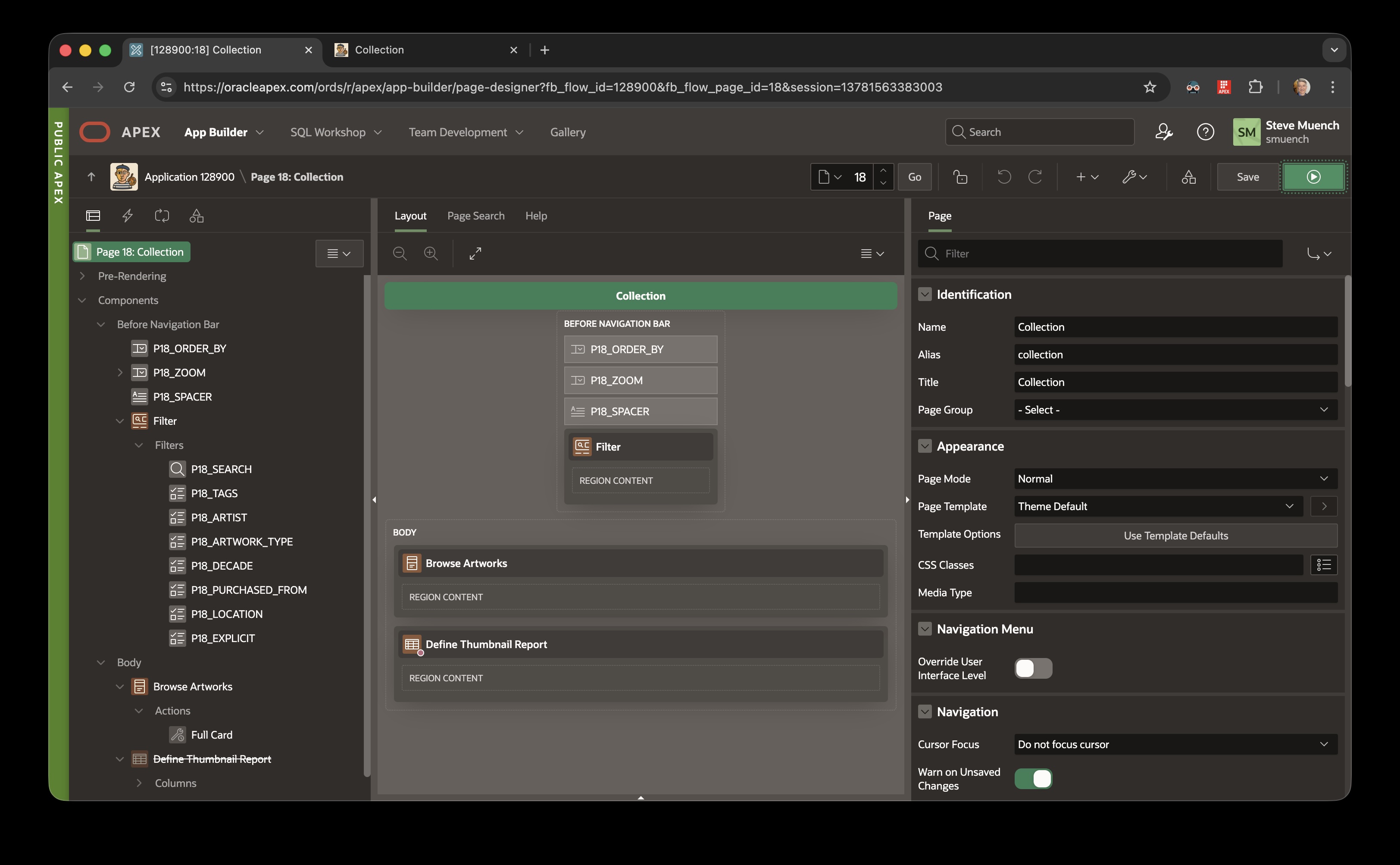
Start by running your application to open it in a second tab…
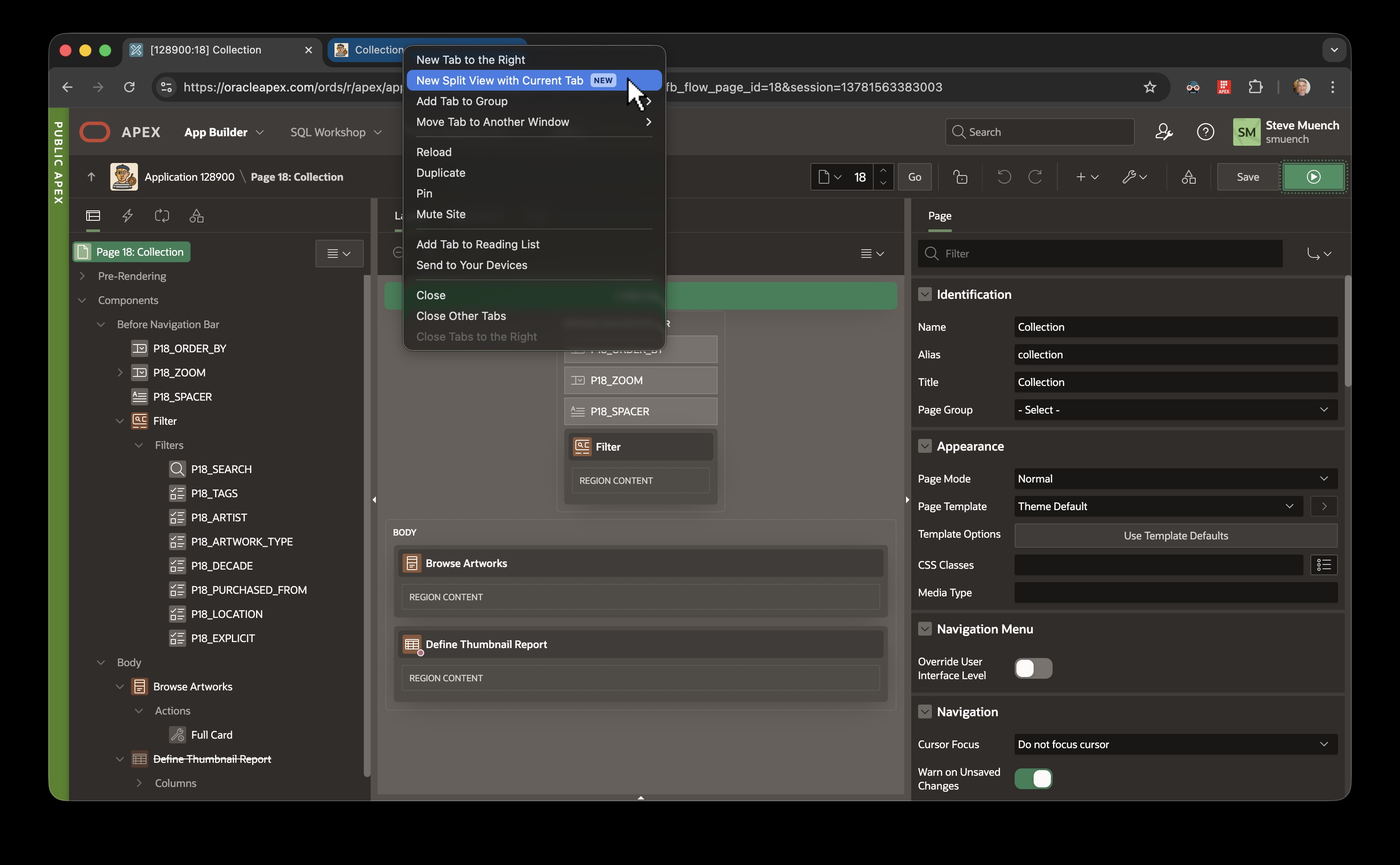
With the Builder tab active, hover over the tab of your running application and right-click on it. Choose the New Split View with Current Tab option as shown below…
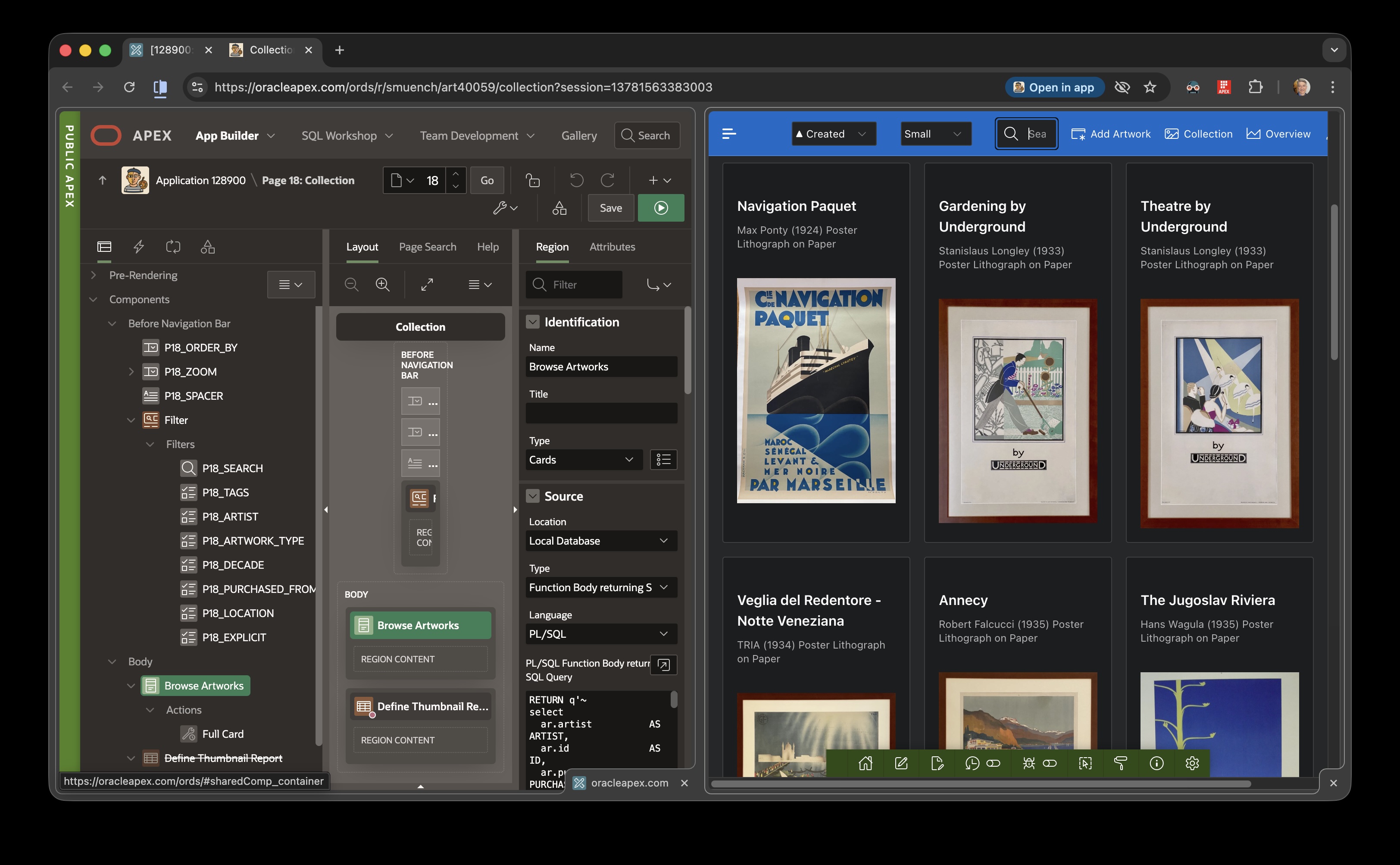
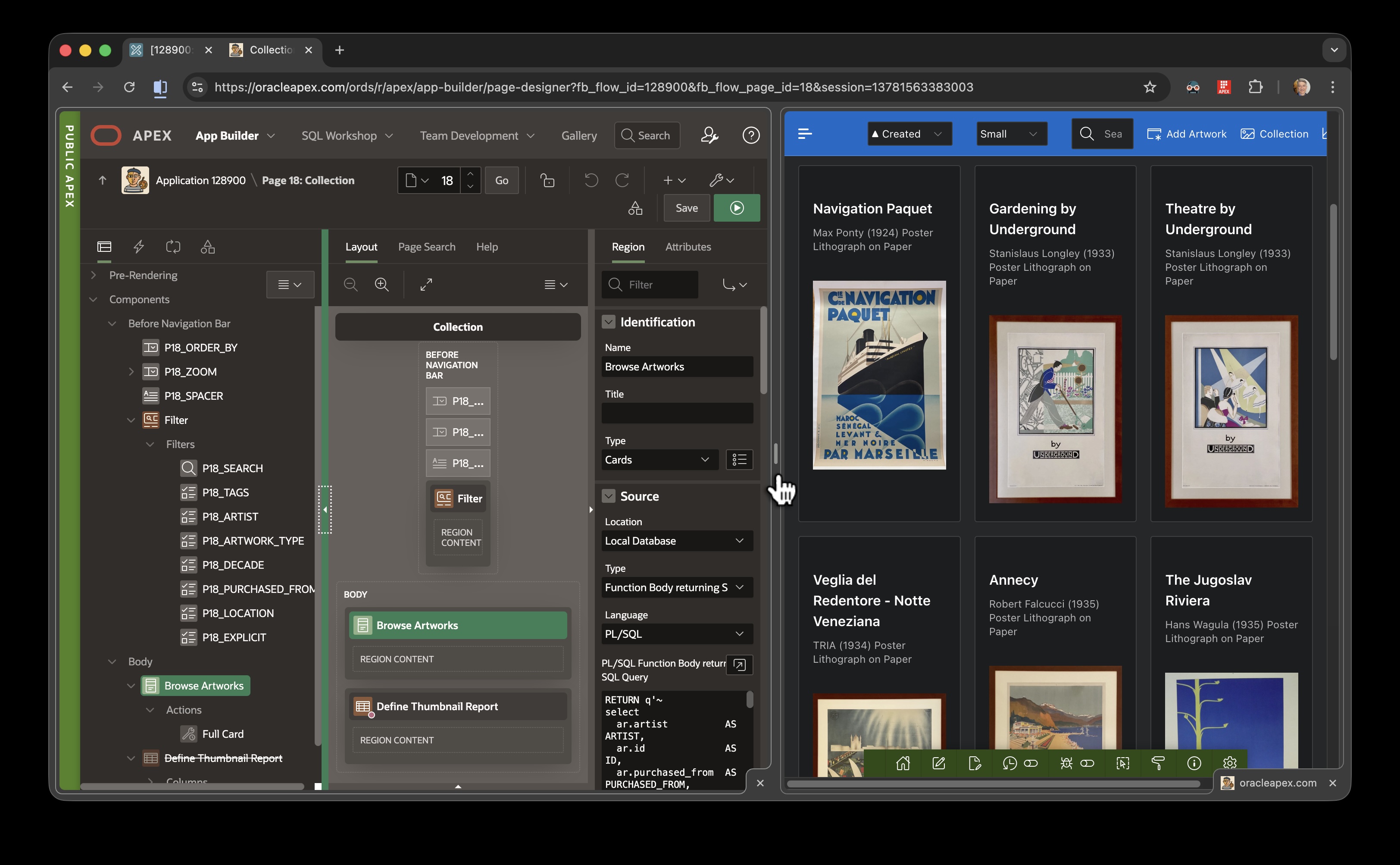
You now have a single tab, with the Builder on the left and your running app on the right. Both remain fully interactive…
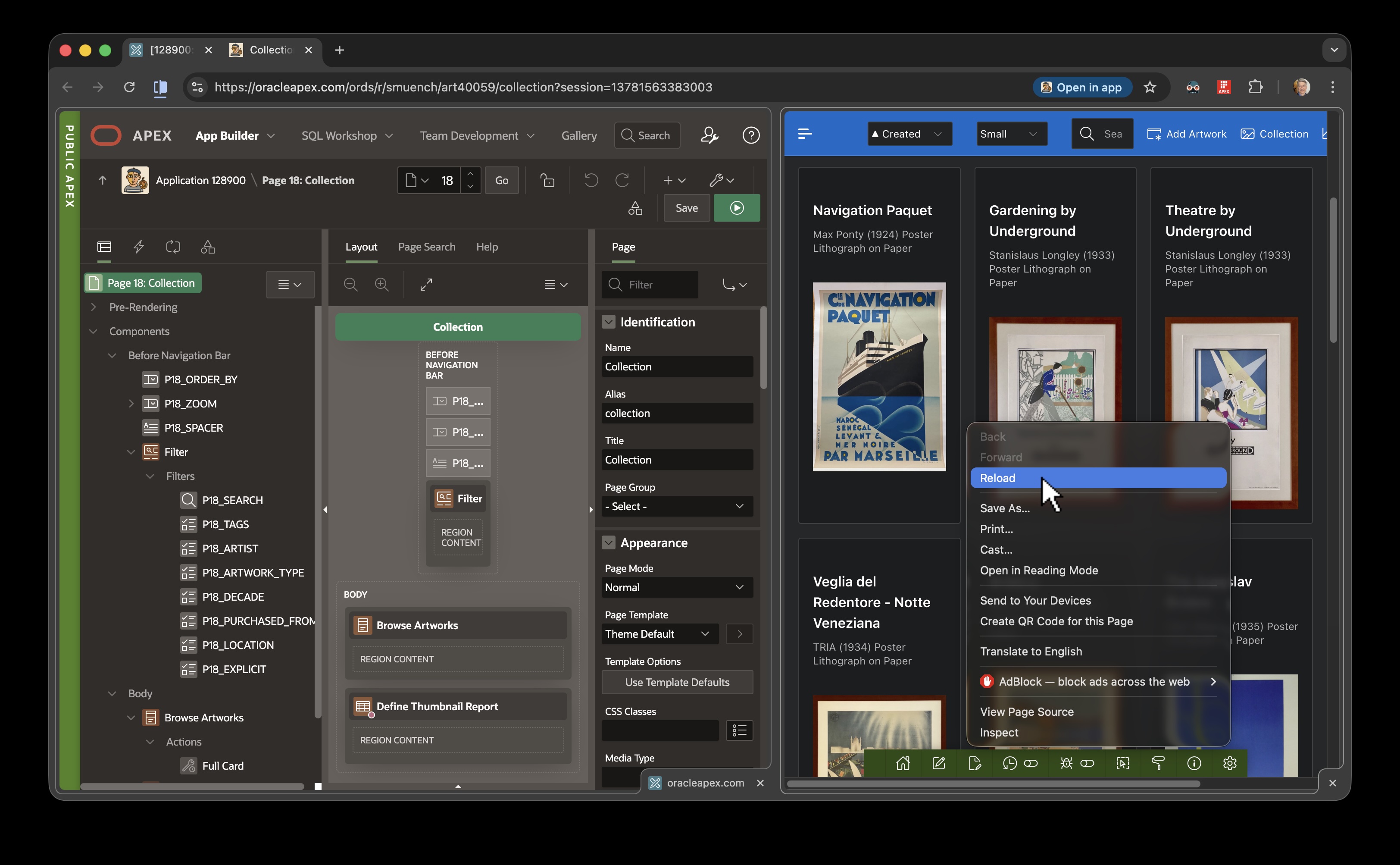
If you ever need to just reload your application view, just right click anywhere on the page and choose the Reload option.
You can use the new Arrange Split View toolbar icon as shown below to reverse the views, separate them, or close one of them…

As shown below, you can hover over the splitter margin and drag it to resize the left and right views…
That’s all there is to it!
Page Designer + Object Browser
Of course, the side-by-side tabs can also be two separate areas of the APEX Builder itself. For example, I find myself now working frequently with a Page Designer and Object Browser side by side. This lets me reference and evolve application logic in PL/SQL packages, and schema objects in database tables, views, and columns while I work on various pages in my app.
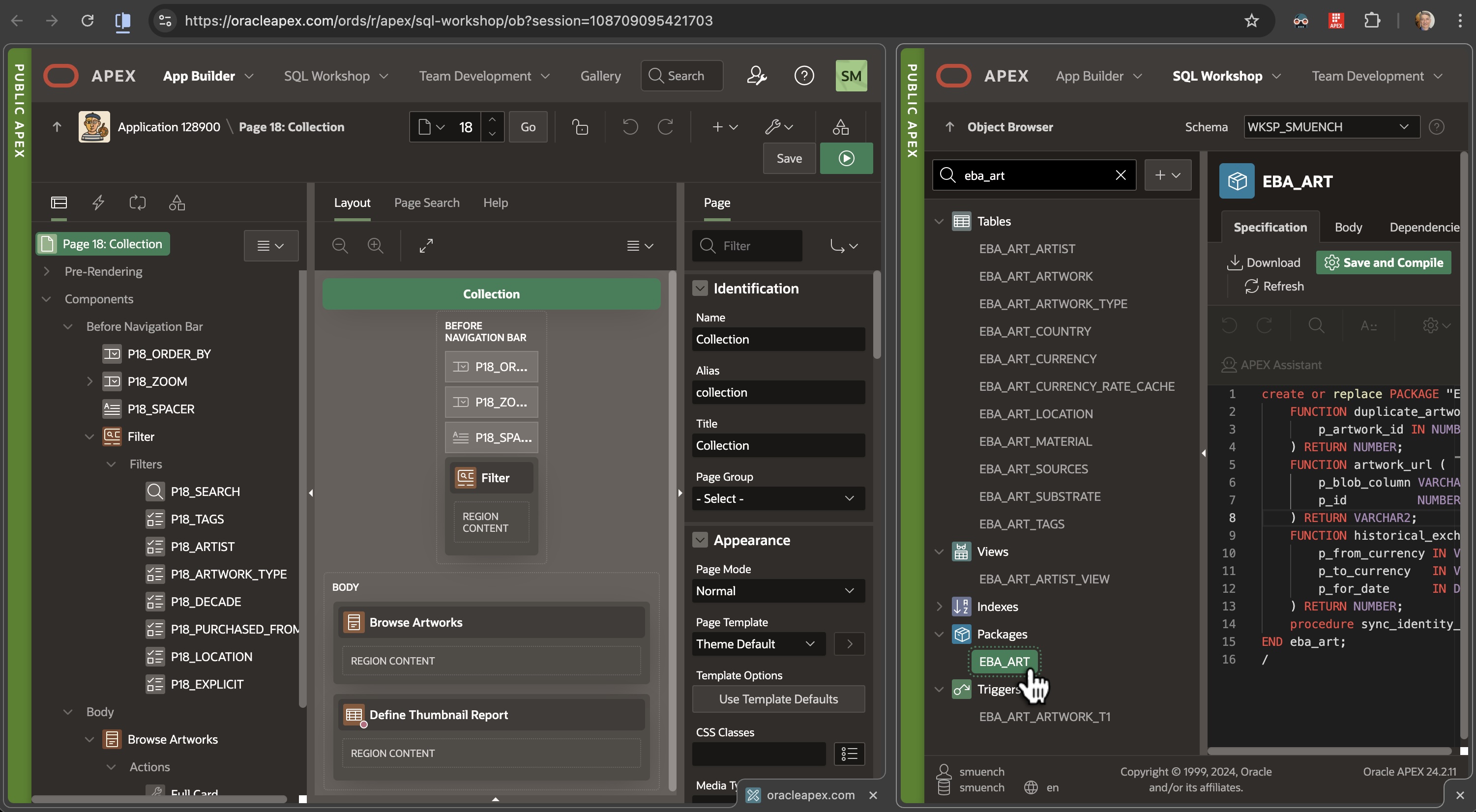
To setup this arrangement, start with the Page Designer open, and right-click on the SQL Workshop > Object Browser menu option to choose the Open Link in Split View option as shown below.

The Object Browser appears in the split view. You can keep its navigation pane collapsed to gain more screen space, or as shown below, click on the sidebar arrow to pop it open…

This lets you choose a different package, table, view or other schema object for reference while working on a page.
Happy even-more-productive development!
 Dive Into APEX