Planning with Gantt & Calendar #JoelKallmanDay

Overview

Building an app to solve a personal need is a great learning opportunity. Sometimes I plan multi-day trips and must decide among overlapping events. The annual animation festival in Annecy, France, is one example. Hundreds of talks and screenings span various venues in a lovely little lakeside locale. Another is a periodic pilgrimage to New York City to see as many musicals and museums as I can fit in a week. An APEX app helps me plan my trip activities. This year I celebrate Joel Kallman Day by sharing my app and explaining the smorgasbord of APEX tricks I learned by building it.

(Technical Note: to see a larger version of any figure, right click on it and choose Open Image in New Tab from the context menu…)

Recurring Trips with Overlapping Events

Both the Annecy Festival and my New York City trips happen periodically during a particular year over a series of days, so a trip name and year represent each edition of a trip (e.g. New York City, 2023). Each edition has a start and end day and consists of events to attend that may repeat multiple times during the week. These different event runs might be in distinct venues, like a movie that shows in different cinemas around Annecy. In contrast, all the event runs might be in the same Broadway theatre. In the case of the Annecy Festival, films can be from a particular country, in an original language, and have subtitles in another language, so as shown below my data model also includes countries and languages.
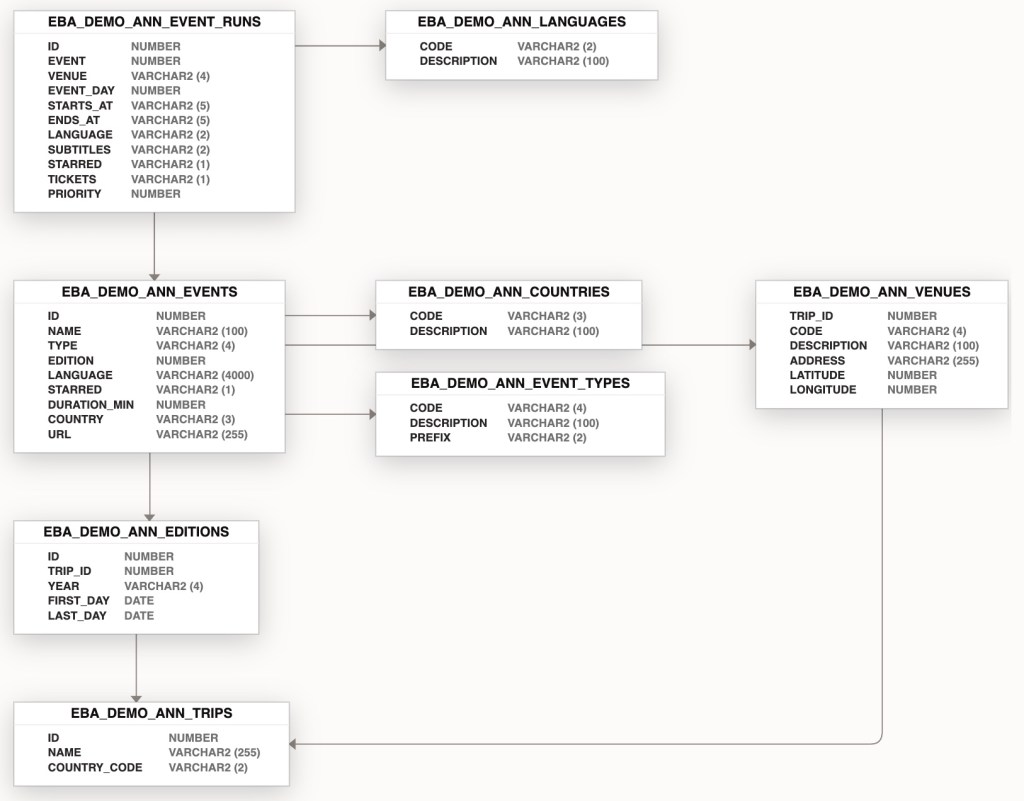
Data model for Activity Planner application

Gantt Chart Showing Per-Day Show Runs

To easily see the overlapping events on each day of the trip, I use a day selector and Gantt chart as shown in the figure below. The query for the Gantt chart region includes columns DAY_START and DAY_END whose values come from combining the selected day with user preferences for day start time and day end time. The query also includes STARTS_AT and ENDS_AT datetime values for each event run that falls on the selected day. It concatenates the name of the event and the name of the venue into a NAME column that’s used as the task name. To suppress the display of task name along the left edge of each row, I selected the Attributes tab of the chart region, and set Show Row Axis to OFF.
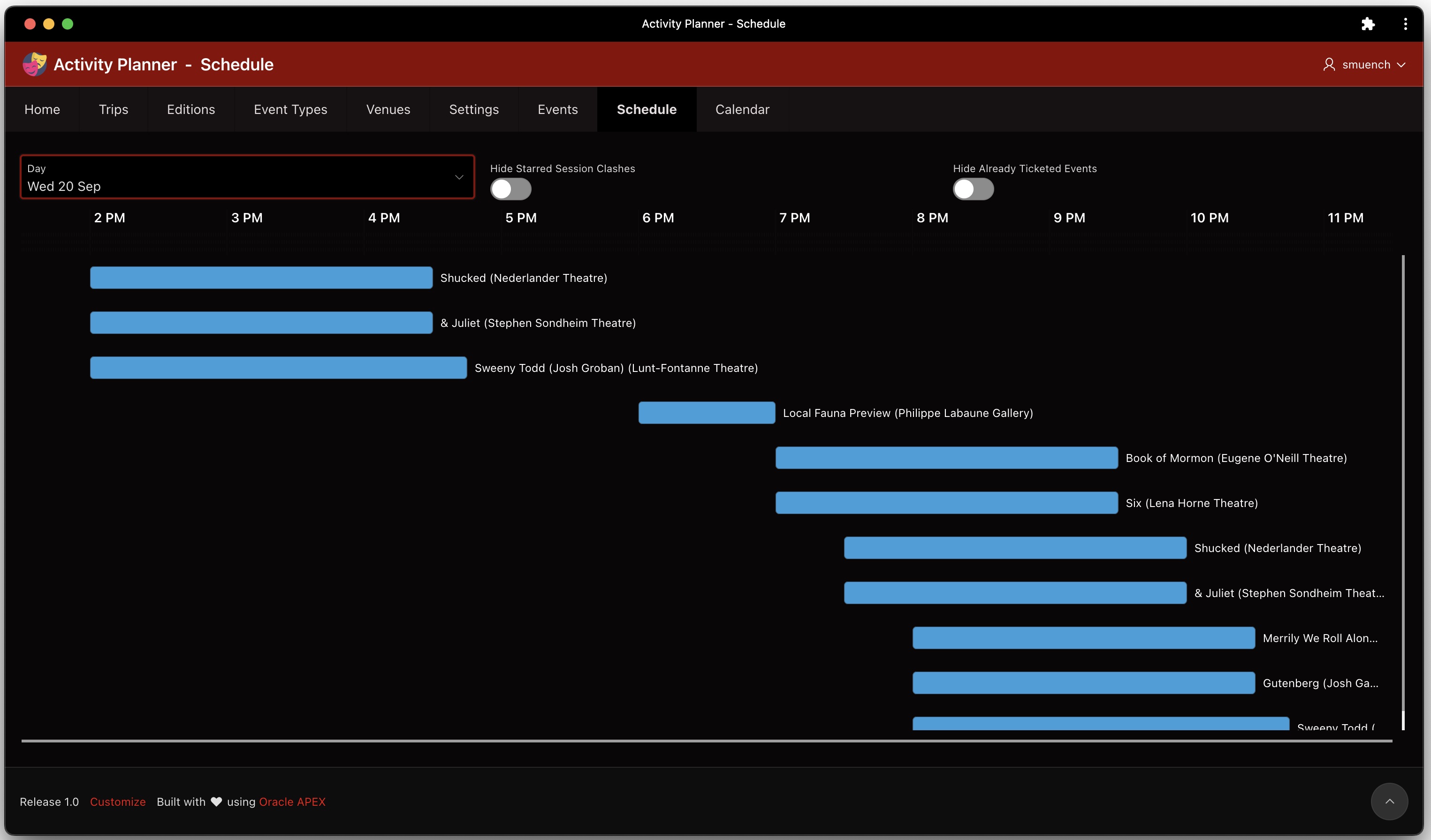
Gantt Chart showing many overlapping event runs on Wednesday, September 20th

Day Selector’s Data-Driven Date Range

The EVENT_DAYS Shared Components List of Values (LOV) driving the day selector was an interesting query to write. In the EBA_DEMO_ANN_EDITIONS table for a trip edition we have a START_DATE and END_DATE for the consecutive sequence of days over which the trip edition takes place. I needed a query that returned all of the dates in order starting with the start date and ending with the end date for the current trip edition. The application item CURRENT_EDITION holds its ID value. The query ended up looking like this:

SELECT
  to_char(FIRST_DAY + LEVEL - 1,'fmDy DD Mon') AS DAY_NAME_IN_PERIOD,
  LEVEL AS DAY_NUMBER
FROM (SELECT FIRST_DAY, LAST_DAY
        FROM EBA_DEMO_ANN_EDITIONS
       WHERE ID = :CURRENT_EDITION)
CONNECT BY
  FIRST_DAY + LEVEL - 1 <= LAST_DAY
ORDER BY
  DAY_NUMBER ASC

This query drives the day selector below with an ordered list of formatted day names between start date and end date for the current trip edition:

Day selector for the current trip edition on the Schedule page

Stretching Chart to Fill the Viewport

I could have hard-coded the height of the Gantt chart region on the Attributes tab of the property editor, but that didn’t meet my needs. In the weeks leading up to a trip, I use the app on different desktop computers with differently-sized monitors as well as on my iPad, so I explored how the Gantt chart could stretch to use whatever vertical space is available.

After many failed experiments, I landed on the following technique. It uses the CSS calc() function to compute the value of the height property. First, I defined a CSS class on the page called vertical-stretch and assigned this class to the Gantt chart region. Then I defined the class in the page-level CSS > Inline settings using the syntax:

.vertical-stretch {
   height: calc(100vh - 17rem);
}

The calculation references the full (100%) viewport height by using 100vh and subtracts from that the height of the rest of the elements on the page above the Gantt chart. Using CSS rem units that represent the height (i.e. font-size) of the root element on the page, through trial and error I discovered 17rem closely matched the space used by the other content on the page. Applying the vertical-stretch CSS class to the Gantt chart region means, “Your height is the viewport space remaining after accounting for the vertical space occupied by the elements above the Gantt chart”. This approach made the app look exactly how I wanted on every monitor size and iPad where I use it.

When resizing the window interactively, the chart also reacts as expected as shown in this short video:

Editing Events by Clicking on a Bar

The Event page (7) in the app lets the user create, edit, or delete an event and all its related event runs. When looking at a particular day’s events in the Gantt chart on the Schedule page (14), I wanted clicking on any bar to open the event related to that particular event run. So I set out to find how to obtain the event run ID related to each bar in the Gantt chart. I started by configuring the Gantt chart’s Task Id property to get its value from the event run ID column in the region’s query.

Next, I hoped to find the value of this task ID somewhere in the HTML markup in the page. By right-clicking on a Gantt bar rectangle and choosing Inspect Element, the browser developer tools showed me that each bar was a Scalable Vector Graphics (SVG) group element <g> containing two <path> elements and a <text> element like this:

<!-- Example SVG group of shapes for Task Id 162 "bar" -->
<g id="_dvtActiveElement43100180_162">
  <path d="..." class="oj-gantt-task-backdrop"></path>
  <path d="..." class="oj-gantt-task oj-gantt-task-bar"></path>
  <text         class="oj-gantt-task-label" ... >
    Local Fauna Preview (Philippe Labaune Gallery)
  </text>
</g>

The <path> element containing the class="oj-gantt-task" looked like the right element to target for a click handler. So I defined a dynamic action to react to the Click event on the CSS class oj-gantt-task using the jQuery Selector with a dot before the class name as shown below:

Configuring a dynamic action on the Click event of the element with CSS class oj-gantt-task

I also noticed the Gantt Chart Task Id value was part of the value of the id attribute on the <path> element’s containing parent <g> element. For example, for an event run with ID = 162, the id attribute of the <g> parent element for the clicked-on bar had a value like “_dvtActiveElement43100180_162“. I learned from my colleagues that the dynamic action event handler can access the triggering <path> element using the expression this.triggeringElement. So, my dynamic action event handler passes the triggering element to an eventRunIdForClickedGanttBar() helper function in my page. It returns the Task Id value by parsing it out of the parent element’s id attribute like this:

function eventRunIdForClickedGanttBar(p_this) {
  return extractNumberFromUnderscoreString($(p_this).parent()[0].id);
}

The calling dynamic action event handler looks like this. It sets the value of a hidden page item P14_SELECTED_EVENT_RUN_ID to hold the event run ID that was clicked on, sets the Request to EDIT_EVENT_RUN, and submits the page.

const lTaskId = eventRunIdForClickedGanttBar(this.triggeringElement);
// Set Task id to hidden page item, and submit
// the page with EDIT_TASK request
apex.page.submit({
    request: "EDIT_EVENT_RUN",
    set: {
        "P14_SELECTED_EVENT_RUN_ID": lTaskId
    }
});

In the page’s Processing tab, an After Processing branch redirects to the Event page (7) when the Request = EDIT_EVENT_RUN, passing along this hidden page item value for the target page’s P7_EVENT_RUN_ID page item value. It also passes its own page number 14 as the value of the P7_CALLING_PAGE_ID page item. In contrast, when the Home page (1) calls the Event page to edit an event, its link passes in the value 1 for this page item.

Passing the event run ID for the clicked-on Gantt bar to the Event page

The Event page uses the P7_CALLING_PAGE_ID item value to conditionally return to the right calling page when the user cancels or applies their changes in the Event page. The target Event page has a Pre-Rendering page process Get Event from Event Run Id that looks up the parent event ID to edit based on the “child” row’s event run ID passed in.

Saving Time During Event Data Entry

Each event has a duration in minutes, and each event run has a start time and end time. Using two dynamic actions on the Event page shown below, I speed up data entry by computing the duration if it’s null when a pair of Starts At and Ends At times are entered for an event run. In addition, once the duration is set, any other event runs entered benefit from another dynamic action that automatically computes the Ends At time once the user enters a Starts At and tabs out. This feature makes it very quick to enter all the dates and times a particular musical like “& Juliet” is offered during a trip edition.
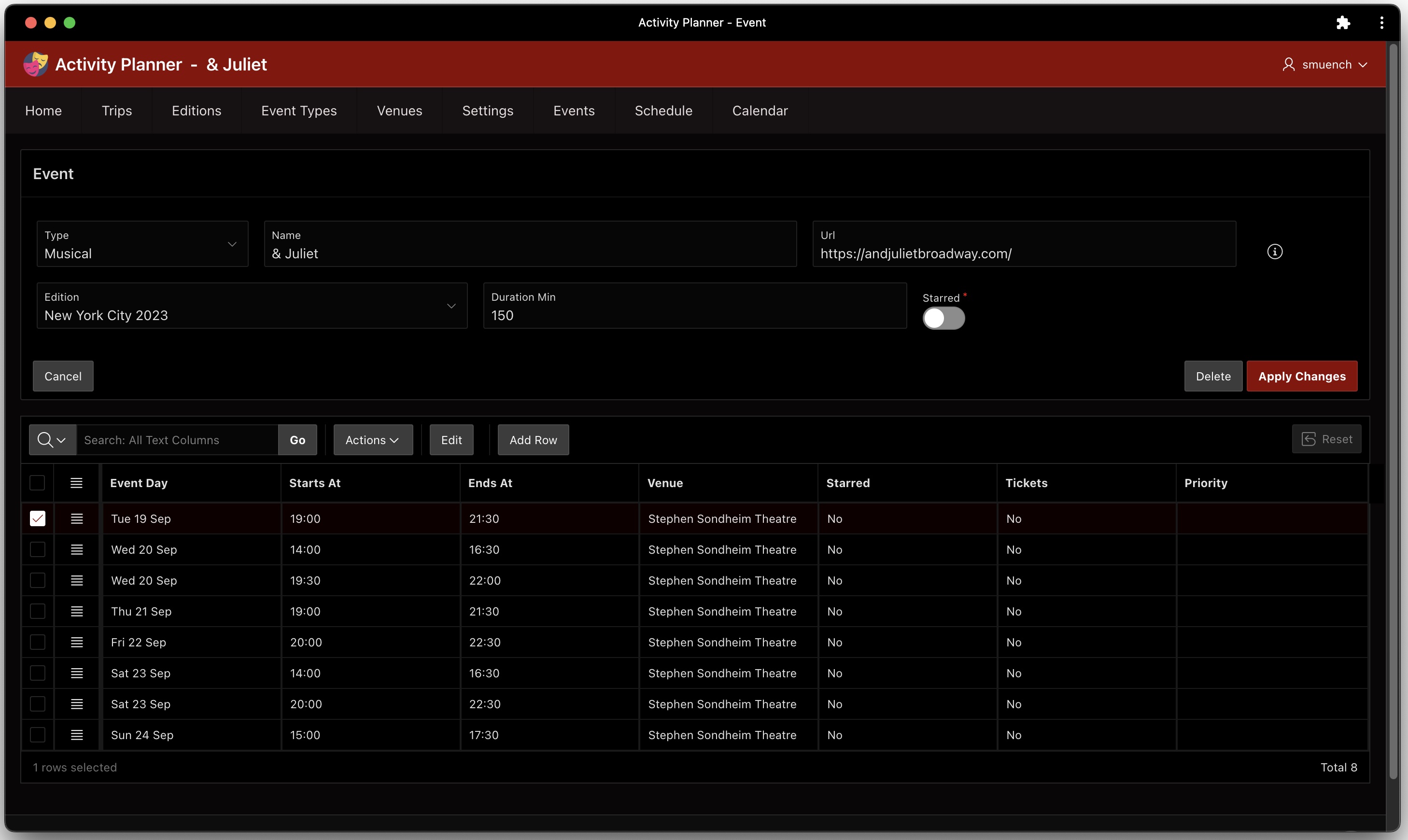
Event page editing the Broadway musical & Juliet and its event runs

The page contains the following two helper functions in its JavaScript Function and Global Variable Declaration section the the property editor:

function addMinutesToTime(time, minutes) {
  return apex.date.format(
           apex.date.add(
             new Date("2023-01-01 "+time),
             parseInt(minutes),
             apex.date.UNIT.MINUTE),
           "HH24:MI");
}

function minutesBetween(time1, time2) {
  var date1 = apex.date.parse(time1, "HH24:MI");
  var date2 = apex.date.parse(time2, "HH24:MI");
  var diff = Math.abs(date2.getTime() - date1.getTime());
  return Math.floor((diff / 1000) / 60);
}

Then, the dynamic action on the interactive grid’s ENDS_AT column has a Set Value action step that executes JavaScript to call minutesBetween() to compute the duration of the event:

minutesBetween($v('STARTS_AT'), $v('ENDS_AT'))

It only runs if the duration is currently null and both the STARTS_AT and ENDS_AT columns in the current row have a value using the client-side condition boolean expression:

$v('STARTS_AT')       !== '' && 
$v('ENDS_AT')         !== '' &&
$v('P7_DURATION_MIN') === ''

Similarly, the dynamic action on the grid’s STARTS_AT column has a a Set Value action step that executes JavaScript to call addMinutesToTime() to compute the ENDS_AT time, based on the duration of the event:

addMinutesToTime($v('STARTS_AT'), 
                 $v('P7_DURATION_MIN'))

It only runs if the duration is not null, the STARTS_AT has a value, and the ENDS_AT is null using the client-side condition boolean expression:

$v('STARTS_AT')       !== '' && 
$v('P7_DURATION_MIN') !== '' &&
$v('ENDS_AT')         === '' 

Marking Event Runs as Starred/Ticketed

When reviewing a large list of events, there’s a good chance that you’re not interested in all of them. The app lets the user “star” a particular event run to mark it as a “favorite”. This results in setting the STARRED column value to “Y“. In addition, some trips involve a booking or ticketing process to confirm a seat for a particular event run. The app lets the user indicate they’ve confirmed their place by setting a Tickets switch to ON. In the figure below, I’m starring both Wednesday, September 20th performances of musical “& Juliet” and marking the 14:00 showing as ticketed.

Marking a particular event run as both Starred and Ticketed

Conditionally Coloring Selected Bars

It can be useful to conditionally color the Gantt chart bars based on application-specific criteria. In my app, I want “starred” events to show with one color that makes them distinct, while “ticketed” events show with another unique color. This was easy to accomplish. I first included the following SELECT list expression in the query for the Gantt chart region in the Schedule page (14):

case 
   when r.tickets           = 'Y  then 'tickets'
   when r.event_starred     = 'Y' 
     or r.event_run_starred = 'Y' then 'starred'
end as css_classes

Then I set the Task CSS Classes property of the Gantt chart to &CSS_CLASSES. The final step was adding the following simple CSS class definitions to the page’s CSS > Inline section in the property editor:

.tickets {
   fill: blue;
}

.starred {
   fill: yellow;
}

After the user applies changes on the Event page, it conditionally branches back to the calling page. Since the Schedule page passed its page number 14 into the P7_CALLING_PAGE_ID page item, the user returns to the Schedule page. As shown below, we immediately see conditionally colored event run bars reflected in the Gantt chart. As dictated by the above CSS classes, the bar for the ticketed event run is now blue while the bar for the starred one is now yellow.

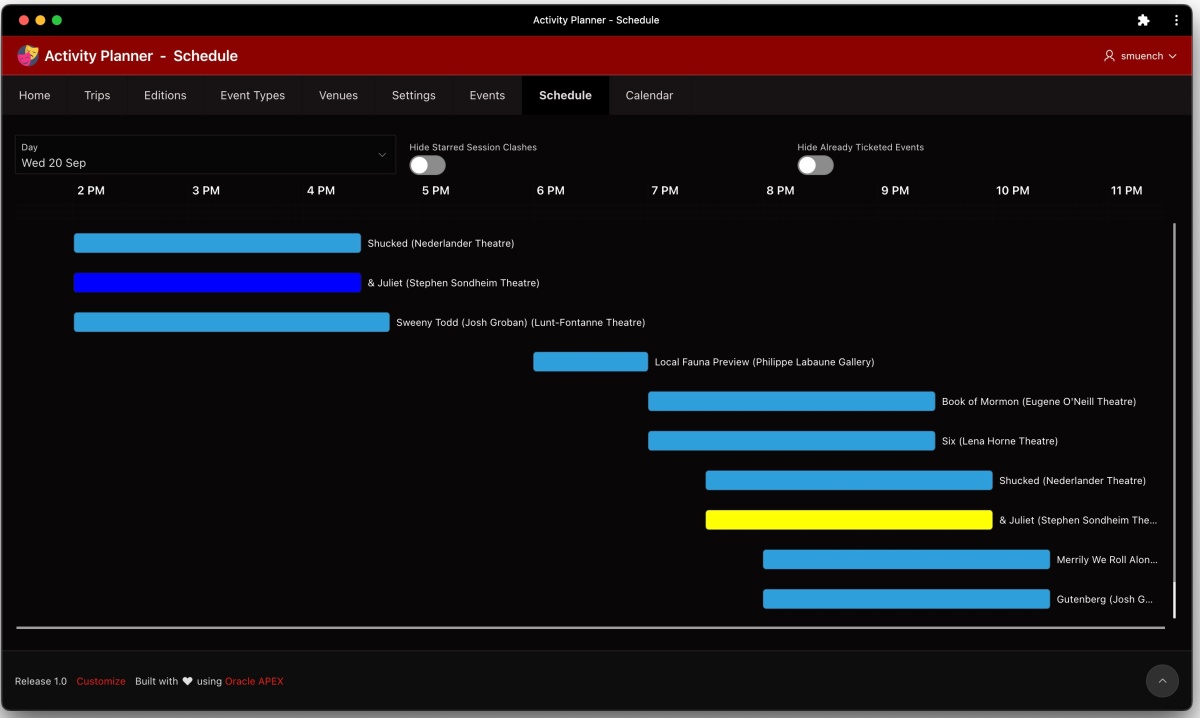
Gantt bar for starred showing appears in yellow, while ticketed showing is blue

Narrowing Focus: Hiding Clashing Events

When you have identified your starred event runs, it can be useful to narrow your focus to only see your favorites. This can help you decide which particular event runs to book or buy tickets for. The Schedule page has a switch at the top labeled Hide Starred Session Clashes. When this is switched on, as shown below the Gantt chart suppresses all other event runs that would overlap with any of your favorites. Very useful, since you can’t be in two places at once!

Hiding event runs that clash with your favorites to focus your attention

This feature is implemented directly in the SQL query for the Gantt chart region using an appropriate WHERE clause predicate. It uses the switch page item as a bind variable and uses a NOT EXISTS(…) clause to include any unstarred events that do not have clashes with any starred ones.

and (:p14_hide_starred_session_clashes = 'N' 
     or
     (:p14_hide_starred_session_clashes = 'Y' and
       ((r.event_starred='Y' or r.event_run_starred='Y')
         or
         (r.event_starred='N' 
          and not exists (
            select 1
              from eba_demo_ann_event_runs_v starred_run
             where (
               starred_run.event_starred='Y' or
               starred_run.event_run_starred='Y')
               and ((
                 /* starts before and ends after current */
                 starred_run.starts_at < r.starts_at and
                 starred_run.ends_at   > r.ends_at)
                 or (
                 /* starts after and ends before current */
                 starred_run.starts_at > r.starts_at and
                 starred_run.starts_at < r.ends_at)
                 or (
                 /* ends after current starts & before current ends */
                 r.starts_at         <= starred_run.ends_at and
                 starred_run.ends_at <= r.ends_at)
                 or (
                 /* starts after current & before current ends */
                 r.starts_at           <= starred_run.starts_at and
                 starred_run.starts_at <= r.ends_at)))))))

Focusing Further: After Getting Tickets

After you booked your seat or bought your ticket for one particular showing, you no longer need to see all of the other available opportunities to see the same event. The Schedule page has a second switch at the top labeled Hide Already Ticketed Events. As shown below, the Tuesday 19th September showing of “& Juliet” does not appear since above we already marked the Wednesday 2pm showing as being ticketed.

Hiding other showings of an event you have already bought tickets for

Again, this feature is implemented with a different SQL WHERE clause predicate using this other switch page item as a bind variable. When the variable is set to “Y” it uses an event_id not in (…) with a subselect to exclude event runs for ticketed events from days other than the currently selected day (:p14_day).

and (nvl(:p14_hide_ticketed_from_other_days,'N') = 'N' 
     or (
       nvl(:p14_hide_ticketed_from_other_days,'N') = 'Y' 
       and 
       event_id not in (
         select distinct event_id
           from eba_demo_ann_event_runs_v
          where tickets='Y' 
            and event_day !=  :p14_day)
       )
     )

Since the Gantt chart query references three different page items as bind variables, we have to ensure that its Page Items to Submit property mentions all their names so that their values are sent to the server whenever the region refreshes its query results. The figure below shows the three page item names in a comma-separated list.

Always ensure Page Items to Submit includes names of any page items used as bind variables

Geocoded Date in the Venues Page

As shown below, the Venues page uses the techniques explained in my article Refitting Filtered Map Points to provide a filterable list of venues with an automatically-synchronized map that zooms and recenters to show the locations of the filtered venue list.

Filtering the list of venues to see the narrowed results on a map

The companion Venue page for creating and editing venues uses a Geocoded Map page item to simplify finding the longitude and latitude for a given address. In order to have the Geocoded Map page item show the appropriate pin on the map when editing an existing venue, we use the following expression in the region query to create an appropriate SDO_GEOMETRY value based on the v.longitude and v.latitude values stored in the table. Importantly, the Query Only property of the corresponding P11_GEOCODED_ADDRESS page item is set to ON so that the APEX engine doesn’t try to update any SDO_GEOMETRY column in the underlying EBA_DEMO_ANN_VENUES table that has LATITUDE and LONGITUDE instead.

/* 
 * if latitude/longitude have values, then
 * return sdo_geometry structure representing
 * the point (longitude,latitude)
 */
case 
  when v.longitude is not null 
   and v.latitude is not null then
     sdo_geometry(2001,
                  4326,
                  sdo_point_type(
                    v.longitude,
                    v.latitude,
                    null),
                  null,
                  null)
        end geocoded_address

Since we’re not asking APEX to save the SDO_GEOMETRY value directly to an underlying SDO_GEOMETRY column, when the user enters a new address and triggers the geocoding, we need to pick out the longitude and latitude so they get stored correctly in the respective, underlying columns of the same name. The P11_GEOCODED_ADDRESS page item has a dynamic action named When Address Confirmed that reacts to the Result Selection [Geocoded Address] event to trigger two Set Value dynamic action steps to set the P11_LONGITUDE and P11_LATITUDE page items with the values the geocoding service has returned. They reference the this.data.longitude and this.data.latitude JavaScript expressions to get the job done.
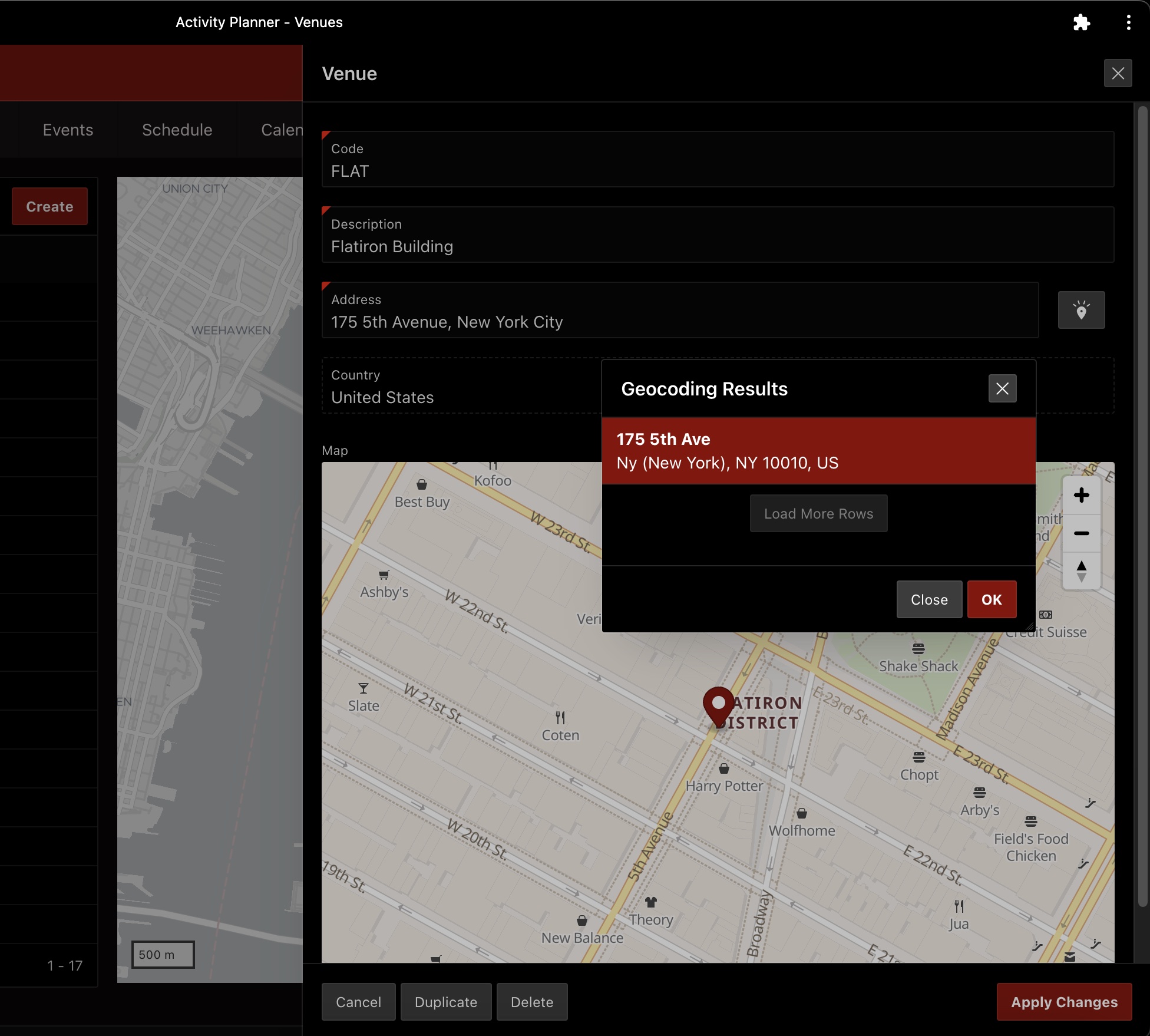
Geocoded Address page item lets APEX resolve longitude and latitude automatically

APEX’s geocoding service depends on knowing the country code of the address the user is typing in. The Venue page has a Pre-Rendering page process in the Before Header section named Default Trip Info for Current Edition. It contains the following PL/SQL block that looks up the trip ID and country code based on the value of the current edition the user is working with. Note that it only assigns the P11_TRIP_ID if the primary key P11_CODE is null (meaning that we’re creating a new venue):

for j in (select e.trip_id,t.country_code 
            from eba_demo_ann_editions e 
            left join eba_demo_ann_trips t on t.id = e.trip_id
           where e.id = :CURRENT_EDITION) loop
    if :P11_CODE is null then
        :P11_TRIP_ID := j.trip_id;
    end if;
    :P11_CURRENT_TRIP_COUNTRY_CODE := j.country_code;
end loop;

Then, the Geocoded Address page item is configured to use the P11_CURRENT_TRIP_COUNTRY_CODE page item for geocoding country information. This ensures that when defining a venue for my Annecy trip it uses FR for France as the geocoding country and when creating one for my New York City trip, it uses US for the United States.

Configuring geocoded address country

Let’s suppose we defined another trip for “Annecy Festival” with the country of France configured, then defined a new edition of this trip for the year 2024, and then finally set this new “Annecy Festival 2024” as the current trip event to work with using the Settings page explained in the next section. Then as shown below, the geocoding of venue addresses would be done with France as the country.
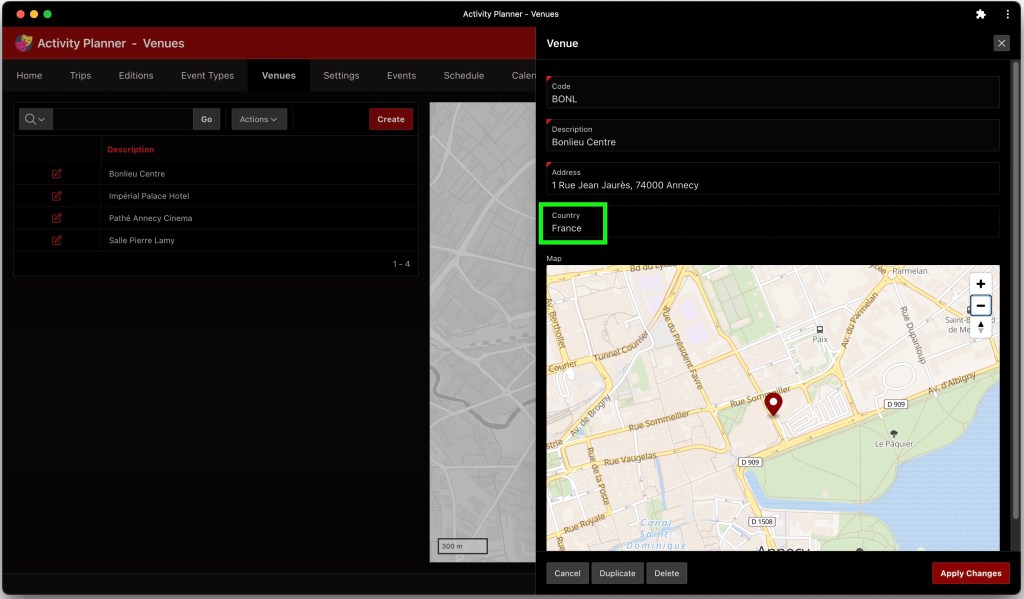
Venue address geocoding uses current trip edition country code

Settings Page

The Settings page (8) lets the user change four user preferences: the current trip edition to view/edit, whether to show countries and languages information, and the start time and end time to use in the Schedule Gantt chart page. The page shown below uses conditional Before Header computations to set the values of the page’s items based on first trying to use user preferences, then conditionally falling-back to using the same-named application items. The application item names (which match the corresponding user preferences) are CURRENT_EDITION, SHOW_COUNTRIES_AND_LANGUAGES, DAY_START_TIME, and DAY_END_TIME. I admit that I wasn’t super excited about the way I had to capture the Day Start Time and Day End Time using four separate select lists, but this was the user experience I had in mind for the task. Maybe a future APEX release will offer a time picker page item for this purpose.

Setting four different user preferences that affect the Activity Planner app

To save the Settings page item changes back to the user preferences, the page has one page process in the Processing section for each user preference that each use the built-in User Preferences page process type to save the updated value to the corresponding same-named user preference. Another four Execute Code page processes in the same section set the preference values into the corresponding application items, since those are what get referenced in various SQL queries around the app.

Focusing Calendar on a Date Range

Once you’ve marked one or more event runs as ticketed, get a bird’s eye view of your trip on the Calendar page. This page focus the users attention on the current trip edition by ensuring the right start day is shown immediately. It sets the calendar to use the START_DATE of the current edition to be the current date displayed, and to start the week display with this date, too.

Calendar gives bird’s eye view of ticketed event runs during the current trip edition

Assuming the calendar region has a static ID of calendar, setting its initial display date requires just one line of JavaScript in the Execute when Page Loads section of the page properties that calls the gotoDate() function on the calendar widget:

apex.region("calendar")
    .widget()
    .data('fullCalendar')
    .gotoDate($v('P12_START_DATE'))

With similar ease, after first computing the day of the week the START_DATE represents, we can set the first day of the calendar week in the calendar region’s Initialization JavaScript Function. The calendar expects its firstDay property to be a day number: 0=Sunday, 1=Monday, etc. I use a Pre-Rendering computation in the Before Header section to compute the value of a hidden P12_ZERO_BASED_FIRST_DAY using the following SQL query:

select to_number(to_char(first_day,'D'))-1
from eba_demo_ann_editions
where id = :CURRENT_EDITION

Setting the calendar’s firstDay property is essentially a one-line task. The code for the Initialization JavaScript Function on the Attributes tab of the property editor for the calendar region appears below. It assigns the value of the zero-based first day to the firstDay property of the pOptions object passed in.

function ( pOptions ) {
    pOptions.firstDay = $v('P12_ZERO_BASED_FIRST_DAY');                                    
    return pOptions;
}

Augmenting App Title with Page Name

It’s a personal preference of course, but as you can see in the previous screenshots, I like the “Top” style Navigation Menu layout since its options stay visible. I combine this style with the use of the After Logo position that lets me place additional context like the page name in the application navigation bar. This leaves more room for content on each page. For example, on the Calendar page I added a Page Title Static Content region with the following HTML Code:

<span class="apex-logo-text"> -&nbsp; Calendar</span>

This uses the same font as the logo text, and adds a hyphen separator and the name of the current page. As shown below, I set its Template to None and its Position to After Logo. This combo gives me a result that feels clean and spacious, and I’ve done the same thing on every non-modal page of the app.

Adding custom content like the page name to the After Logo position in the navigation bar

Grouping Event Runs by Event

The application’s Home page (1) has an Interactive Report showing a searchable list of all event runs for the current trip edition. To group the list of event runs by the event they belong to, I ran the page and used the Actions > Format > Control Break menu to add the Event break column as shown below.

Adding control break group to an Interactive Report to group event runs by event name

Next, to ensure the event runs sort in the most logical sequence for the end user, I used the Actions > Data > Sort menu to configure the report to first sort by Event then sort by Event Day Number as shown here.

Defining the sort order to show event runs in a logical day order

Finally, I saved the current state of the Interactive Report as the new default primary report for all users. As shown below, I used the Actions > Report > Save Report menu, choosing As Default Report Settings in the Save Report dialog, then ensured the Default Report Type was set to Primary in the Save Default Report dialog before clicking Apply.

Updating the primary default report to use current settings of the Interactive Report

Of course, the option to update the primary default report does not appear for end users. I was able to access it since I ran this page as a developer from the APEX Builder.

Formatting a URL as a Hyperlink

My colleague Jayson Hanes helped me figure out how to display an info icon on the Event page to open the event URL in a new browser tab. This should have been a simple task, but the first several approaches I tried didn’t work like I wanted. Luckily, Jayson gave me this helpful tip. The trick was to add a P7_URL_LINK page item of type Display Only to my page, set its Icon property to the fa-info-circle-o, then use the Advanced > Pre Text setting to add an enclosing, open tag for the hyperlink. It uses the substitution string &P7_URL!ATTR. in the value of the <a> tag’s href attribute. The special suffix !ATTR makes sure the value is escaped correctly to appear in an HTML attribute. I added a title attribute so the hyperlink would gain a “tooltip” when the end-user hovers over the info icon with their mouse.

<a href="&P7_URL!ATTR." 
   target="_blank" 
   title="Click to open this page in a new tab">

Then I used the corresponding Post Text setting on the page item to add the closing </a> tag. This produced exactly the desired effect I wanted as shown below. Thanks, Jayson!

Giving the end user an easy way to open the Event URL in a new browser tab

PWA: Instant Desktop/Tablet Use

I took most of the screenshots of the Activity Planner app in this article while running it as a Progressive Web App (PWA). This lets me launch the app directly from the dock of my Mac laptop whenever I need to use it. Combined with my enabling the Persistent Authentication feature at the APEX instance level, this produces a great user experience. I launch the planner app like any other app on my desktop or iPad and instantly continue my trip planning work.

Enabling an APEX app for PWA use takes just two clicks on the Shared Components > Progressive Web Page page in the APEX Builder. Just switch the Enable Progressive Web App switch to ON, as well as the Installable switch just below it. Enabling Persistent Authentication is an APEX instance administrator task in the Manager Instance > Security page.

Saving Quick SQL in Supporting Objects

The idea for this final tip was hatched after realizing every script in the Supporting Objects area of an APEX app could be made conditional. The feature uses the same options as a Server-side Condition elsewhere in the Builder. It offers a powerful way to control which scripts should run when. A simple corollary is that I can easily store the Quick SQL text for my application data model as a script with Condition = Never. This makes it easy to reference and maintain the QuickSQL as requirements change and enhancements get implemented, but ensures that APEX never tries to execute it.

Consistent Switch Value Labels in Grids

While doing final edits of this article I noticed that the Starred and Tickets switch columns in the Event page’s interactive grid would show values Yes and No for unmodified event run rows, but changed to show On and Off for rows I had edited. I resolved that by explicitly setting the On Label and Off Label properties for the Switch component settings in my app under Shared Components > Component Settings> Switch as shown below.

Explicitly setting the On and Off labels for Switch components

Planning Your Next Trip?

Just in case you might find my Activity Planner app useful, or even just educational to experiment with, you can download the app here. Its Supporting Objects scripts install the event run data for my most recent New York City trip, with none of the event runs starred or ticketed yet so you can experiment with those aspects yourself. Enjoy!

Broadway musical “& Juliet” cast members take their bows

Designer Collab for Date Ranges

When searching for hotels, I often specify check in and check out dates with two clicks on the same mini-calendar. The new date picker’s dayFormatter function let me achieve the same user experience in an APEX app, with some CSS help from my designer colleague Jeff Langlais. I got the basic functionality working; then Jeff updated the stylesheet with his CSS magic to make it sing. Finally, a tip from colleague Stefan Dobre about JavaScript classes unlocked how my Java programming experience could be an asset while learning this new language. It inspired me to refactor my code to make using a date range picker very simple in future APEX apps I build.

Overview of the Strategy

My strategy involved using an inline date picker page item as the “surface” the user interacts with to set and see the date range. The date picker page item works together with two other date fields that capture the actual start and end dates. Depending on the application, it might be desirable for the user to see the start and end dates in an alternative display format. However, in my sample application I decided to set them to be Hidden page items. As shown in the figure below, the dayFormatter function associated with the date range picker, considers the values of the hidden Check In and Check Out dates to decide how to format the days in the date range between start date and end date. It also decides the appropriate tooltip to show the user based on these values.

The dayFormatter function on the date range picker styles the range of days and tooltips

CSS Style Classes Involved

The date picker used as the date range picker is tagged with the CSS class date-range-picker. This allows targeting the CSS style rules so that they only affect date range picker page items, without disturbing the styling of other date pickers used in the application. Next, I identified three different styles required to render the “stripe with rounded ends” look I imagined in my head. As shown below, the CSS class dateRangeStart represents the start date of the range, the dateRangeEnd for the end date, and thedateRangeMiddle class for those days in between. I wrote the dayFormatter function to return null for the CSS class property for any days in the “mini-month” that were before or after the date range. For those days within the range, it returns one of these three CSS class names depending on whether the day being formatted is the beginning, middle, or end of the range. The apex.date namespace functions parse(), isSame(), isBefore(), isAfter(), and isBetween() came in handy for writing the date-related logic in the dayFormatter function and the date change handler function described later.

Three CSS class names involved in formatting a date range as a “stripe with rounded ends”

After getting the initial dayFormatter logic working, I realized that some use cases might need a date range that starts and ends on the same day. For example, this would be the case for the dates of a single-day event. To allow for a more visually pleasing single-day date range, I decided a fourth CSS class dateRangeSingleDay was needed to achieve the appropriate “pill” shape the user would expect a one-day event to have. I adjusted the dayFormatter function to return this new class name if start date and end date were the same.

Additional CSS class to handle single-day events as a special case

Handling Date Range Input & Reset

When the user clicks on a day in the “mini-month” calendar of the date range picker, the Change event will fire for that page item. I wrote the logic of the change handler to work as follows:

  • If start date is not set, then set it to the clicked-on date
  • Otherwise, if the clicked day is after the start date, then set the end date to the clicked-on date
  • If the clicked day is before the current start date, then set start date to the clicked-on date
  • Finally, set the date range picker to the value of the start date again, and
  • Refresh the date picker item to re-evaluate the dayFormatter in the process

When the user clicks on the button to reset the date range picker, the Click event will fire for that button. I wrote the logic of the click handler to:

  • Set the value of the start date to null
  • Set the value of the end date to null
  • Set the value of the date picker to null
  • Refresh the date picker item to re-evaluate the dayFormatter in the process

Following good practice, I had written the bulk of my JavaScript logic in a shared application file dateRangePicker.js It defined a dateRangePicker JavaScript object with three functions:

  • assignDayFormatter() called from the Page Load dynamic action event
  • onChanged() called from the Change dynamic action event on the date picker
  • reset() called from the Click dynamic action event of the reset button

In the page containing the date range picker page item, the hidden start date item, the hidden end date item, and the reset button, I setup dynamic actions to invoke the helper methods like this:

Initial implementation using dynamic actions to call JavaScript functions in a helper object

Abstracting Interesting Bits into Metadata

After initially hard-coding the values of the date range picker item, the start date and end date page items, I next tried to add a second date range picker on the same page and rework my code to accept the interesting information as parameters that made the two instances unique. Instead of passing in 10 separate parameters, I decided to pass all the info required as a single parameter in a structured JavaScript object. An example of this parameter object appears below. It captures the names of the page items involved in a single date range picker:

{
  picker: {
    name: "P2_CHECKIN_CHECKOUT_PICKER",
    format: "DD-MON-YYYY",
    allowSingleDay: false 
  },
  start: {
    name: "P2_CHECKIN",  
    label: "Check In"
  },
  end: {
    name: "P2_CHECKOUT",
   label:"Check Out"
  }
}

By passing the appropriate JavaScript object to each of the helper methods, I was able to rework the code to easily support date range pickers on any page in my application and even multiple ones on the same page.

Working in Parallel with a Designer

Since I’m not a CSS expert, I started with the simplest possible dateRangePicker.css file containing the style classes for the four states the date range picker needed, setting a different font color and italic style for the different date range classes. I used the Chrome browser tools Inspect Element… feature to study what elements and classes would need to be selected by these basic CSS rules. In words, for example, the first rule below selects a <td> element having the CSS class dateRangeStart wherever it’s nested inside a containing element with class a-DatePicker-calendar (the “mini-month”) where that is nested inside a containing <a-date-picker> element having the class date-range-picker:

a-date-picker.date-range-picker .a-DatePicker-calendar td.dateRangeStart
{
    color: yellow;
    font-style: italic;
}

a-date-picker.date-range-picker .a-DatePicker-calendar td.dateRangeMiddle
{
    color: darkmagenta;
    font-style: italic;   
}

a-date-picker.date-range-picker .a-DatePicker-calendar td.dateRangeEnd
{
    color: green;
    font-style: italic;   
}

a-date-picker.date-range-picker .a-DatePicker-calendar td.dateRangeSingleDay
{
    color: blue;
    font-style: italic;   
}

The effect wasn’t exactly what I had predicted, but as shown below I could see after selecting February 13th as the start date and 16th as the end date, that the dates in the date range were showing with the indicated colors and in italic. As you can see below, there was something about the date picker’s default styling of the current date (which, recall, coincides with the start date of the date range) that was overriding my styles. That current date was colored with a blue circle. However, I could see that the font style was italic, so I knew my style rule was correctly selecting that dateRangeStart day. I also noticed that today’s date was showing in the calendar with a different colored circle.

Initial attempt at CSS stylesheet to style the date range days differently

Rather than trying to become a CSS expert, I decided to pass these requests along to Jeff the designer so that he could incorporate solutions into the final CSS stylesheet he gave me back. In addition to the “stripe with rounded ends” look for the date range, I also asked him to explore hiding the current day indicator. You can explore the sample application’s dateRangePicker.css static application file to see the CSS magic that Jeff worked to make the date range picker look great. This was a concrete example of how an APEX developer with only the most basic CSS skills could easily collaborate with a highly-skilled CSS web designer to produce a nice-looking result.

Leaning Into JavaScript Classes

As a final step, I asked my colleague Stefan Dobre to review my JavaScript newbie code to suggest any improvements. He recommended I explore further encapsulating the logic of the date range picker into a self-contained DateRangePicker class. Its constructor could accept the JavaScript object describing the combination of picker, start date, and end date page items, and then internalize the details of:

  • Setting the date-range-picker CSS class on the picker page item
  • Assigning the dayFormatter function to the picker page item
  • Adding an event listener to the picker’s Change event to call onChanged()

By expanding the metadata captured by the constructor to also include the static id of the reset button, the DateRangePicker class could also internalize adding an event listener to the button’s Click event to call reset().

Since I’d programmed for many years in Java in my previous roles at Oracle, the idea of using a class felt second nature. But as a JavaScript neophyte, the idea never crossed my mind. So Stefan’s suggestion unlocked a positive path in my Java brain that will hopefully make future JavaScript development more familiar. You can see the full code for the DateRangePicker JavaScript class in the sample application’s dateRangePicker.js static application file, but the skeleton of the implementation looks like this. Its constructor accepts the JavaScript object describing the configuration details of the date range picker page items, sets the date-range-picker CSS style class on the picker page item, assigns the initial value to the date picker from the start date, assigns a dayFormatter function to the picker, and wires up the change and click event listeners to run the appropriate code to handle those actions.

window.DateRangePicker = class DateRangePicker {
    // Construct the DateRangePicker accepting object that describes
    // the picker, start date, end date names, and reset button id
    constructor(pConfig) {
        this.#config = pConfig;
        // Assign the date-range-picker CSS class to the picker
        this.#pickerItem().element.addClass("date-range-picker");
        // Assign the initial value of the picker from the start date
        this.#assignInitialValueFromStartDate();
        // Assign the dayFormatter funtion
        this.#assignDayFormatter();
        // Wire up the change event on the picker to call onChanged()
        this.#pickerItem().element.on("change", () => {
            this.#onChanged();
        });
        // Wire up the click event on the reset button to call reset()
        document.getElementById(this.#resetId()).addEventListener(
            "click", () => {
            this.#reset();
        })
    }

    // Private fields ==================================================
    #config;

    // Private methods =================================================
    #assignDayFormatter() {...}
    #onChanged() {...}  
    #reset(){...}
}

With this class in place, you can see how it’s used in page 2 and page 4 of the sample app. Their respective page load JavaScript code contains two simple calls like the following to construct two DateRangePicker class instances, passing the interesting info into each’s constructor.

// Example from Page 4 in the sample app's Page Load JavaScript
// Setup config for Event Start/End Date Range Picker
// Allows a single day to be both start and end
window.eventStartEndDateRangePicker = new DateRangePicker({
    picker: {
      name: "P4_EVENT_DATE_RANGE",
      format: "DD-MON-YYYY",
      allowSingleDay: true 
    },
    start: {
       name: "P4_EVENT_STARTS",  
       label: "Event Start"
    },
    end: {
        name: "P4_EVENT_ENDS",
        label:"Event Start"
    },
    reset: {
        id:"Reset_Event_Dates"
    }
});

With all the logic encapsulated in the JavaScript class, there is no setup left in the page other than making sure the picker, start date, and end date page items have their Value Protected property set to false and that they all use the same format mask. This resulted in a page you can experiment with in the sample to create or edit the details of an Event. Each Event in the sample app has a start and end date (which can be the same day) as well as a default check in and check out day for event attendees (which must be at least two different days).

Two date range pickers in action in a sample app editing Event details

Get the Sample App

You can download the APEX 22.2 sample application by clicking here. Thanks again to designer Jeff Langlais for helping me with the CSS styles to deliver the visual idea I had in mind, and to Stefan Dobre for teaching me about JavaScript classes to simplify how to uptake the date range picker functionality in future APEX apps I will build.

21.2: Fine-Tuning Initial Render of Tabs & Cards

If you use a Static Content region with the Tabs Container template to present subregions on separate tabs, in APEX 21.2 you might notice during initial page render that you momentarily see the contents of all the tab “pages” before they disappear behind the initially selected tab. Depending on the contents of the tab pages, the result may be more or less noticeable. However, since one of my applications presents multiple tabs of colorful Badge Lists, the “Easter eggs” below compelled me to search for a solution…

Three Badge List regions situated in a Tabs Container all render momentarily during page load

Luckily, my colleagues Tim and John helped me with a combination of simple CSS suggestions that solved the problem. After adding two rules to an application-level CSS file, the undesirable effect vanished.

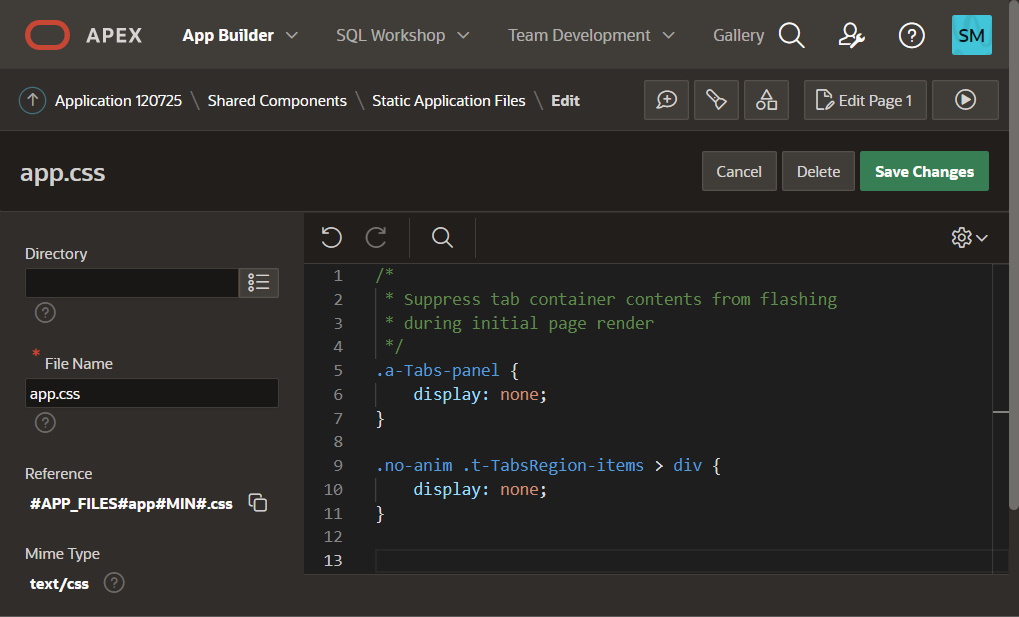
While the two CSS rules that avoid the flashing tabs could be applied to each page where needed, I prefer a “one-and-done” solution. An application-level CSS file is best for rules that apply to all pages, so I added the two rules in there. Under Shared Components > Static Application Files I created an app.css file with the contents shown below:

App-level app.css file with two rules to suppress flashing of all tab containers’ contents

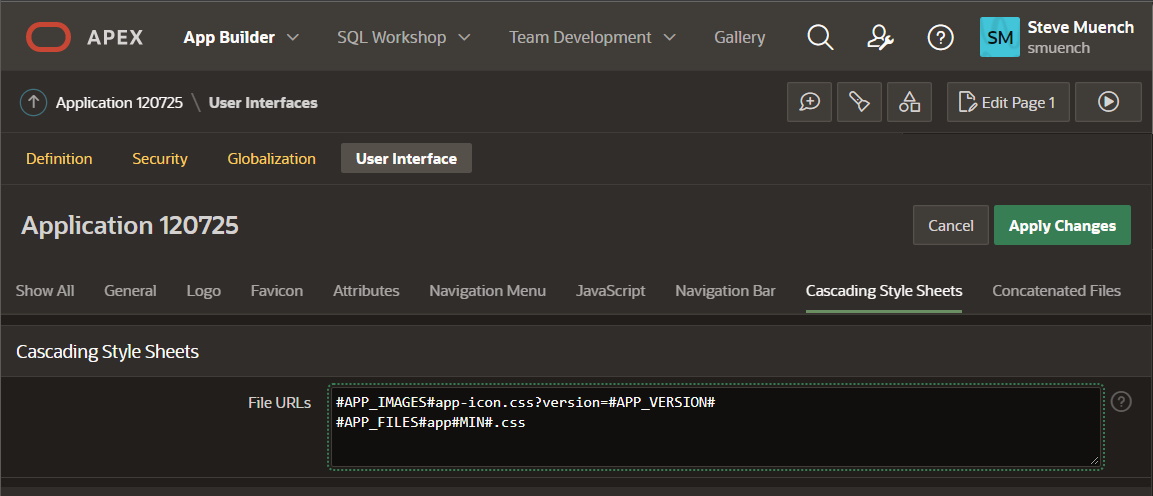
Next, I clicked on the copy icon next to the #APP_FILES#app#MIN#.css name under Reference to copy that file path to the clipboard so I could paste it into the list of CSS files that my application will load with every page. That configuration is also under the Shared Components settings, on the User Interface Attributes page, in the Cascading Style Sheets section. I pasted the file reference on its own line in the text area as shown below:

List of App-level CSS file URLs that APEX will load with every page

With this app-level CSS file in place, my landing page was looking sharp.

Landing page with Tabs Container of three Badge Lists and a Chart region

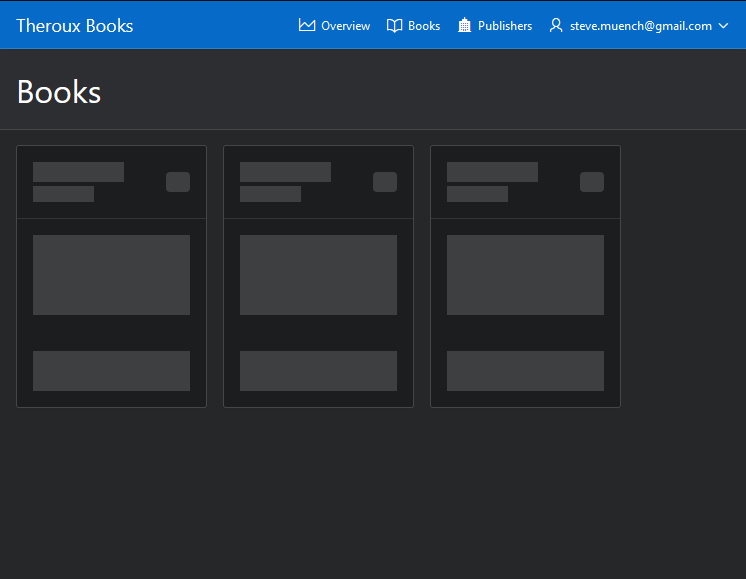
Energized that my app’s tab pages were looking great now, I turned my focus next to my application’s Cards regions. I noticed that APEX shows a row of placeholder cards when the page initially draws to help the end-user understand an asynchronous data request is in progress to retrieve the actual card information.

APEX Card regions initially show placeholder cards, then actual cards appear once data loads

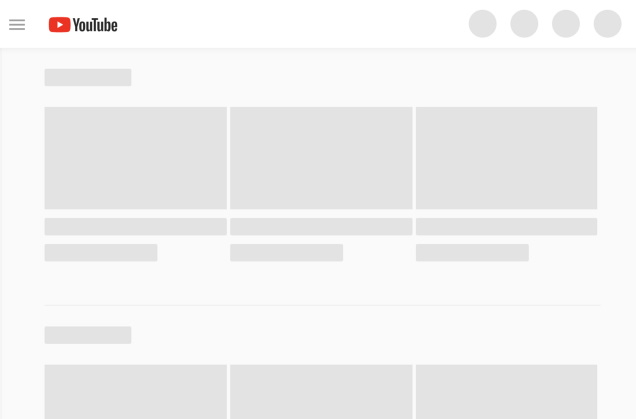
This employs a familiar technique that other modern web applications like LinkedIn, Facebook, and YouTube use.

YouTube shows placeholder cards initially, then actual cards appear once data loads

In situations where the card data takes time to retrieve, placeholders are a useful affordance for the end-user. In my particular app, it seemed to add less value since my cards render almost instantly.

I used Chrome Dev tools to explore the structure of the page to see if a similar CSS technique might be able to hide the placeholder cards. After none of my experiments panned out, again my colleague Tim nudged me back onto the happy path with a suggestion. I edited my app.css file to add the one additional rule you see below that delivered the results I was hoping for.

/* Contents of app.css */
/*
 * Suppress tab container contents from flashing
 * during initial page render
 */
.a-Tabs-panel {
	display: none;
}

.no-anim .t-TabsRegion-items > div {
    display: none;
}

/*
 * Suppress cards region from rendering initial row
 * of placeholder cards during initial page render
 */
.no-anim .a-CardView-item > div {
    display: none;
}

These CSS rules use a combination of class selectors ( .someClassName) and the child element selector ( > someElement). Effectively they say:

  • Hide elements with the a-Tabs-panel class
  • Hide div child of parent with classt-TabsRegion-items inside element with class no-anim
  • Hide div child of parent with class a-CardView-item inside element with class no-anim

Keep in mind that these rules only affect the initial display state of the affected elements since APEX automatically makes the relevant elements visible again once they are ready for the end-user to see.

With these three rules in place, the user sees only the selected tab’s Badge List as expected and my quick-loading cards without placeholders. In case you want to try the example application, download it from here. Try commenting out the CSS rules in app.css in the example to see the difference with and without so you can decide what’s best for your own application use cases.

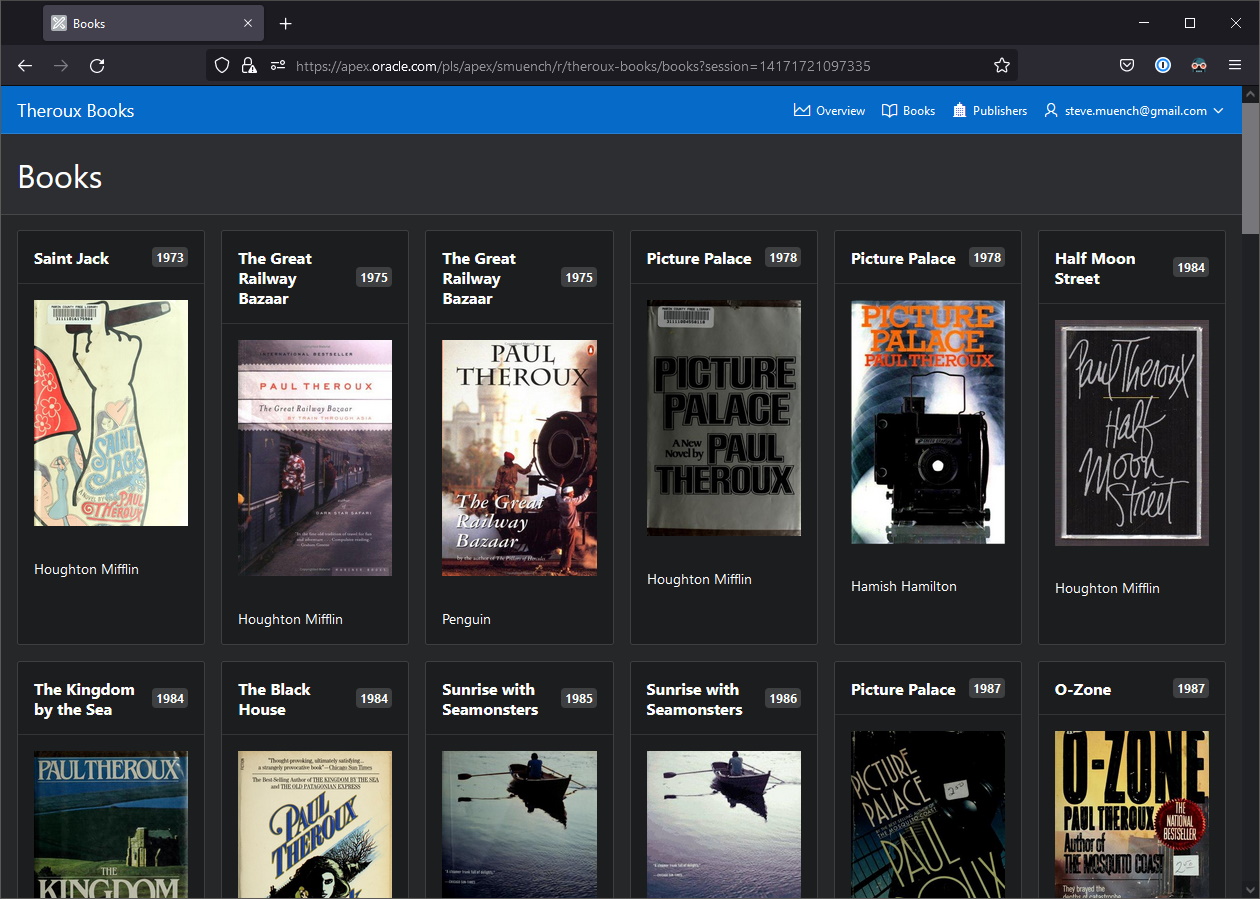
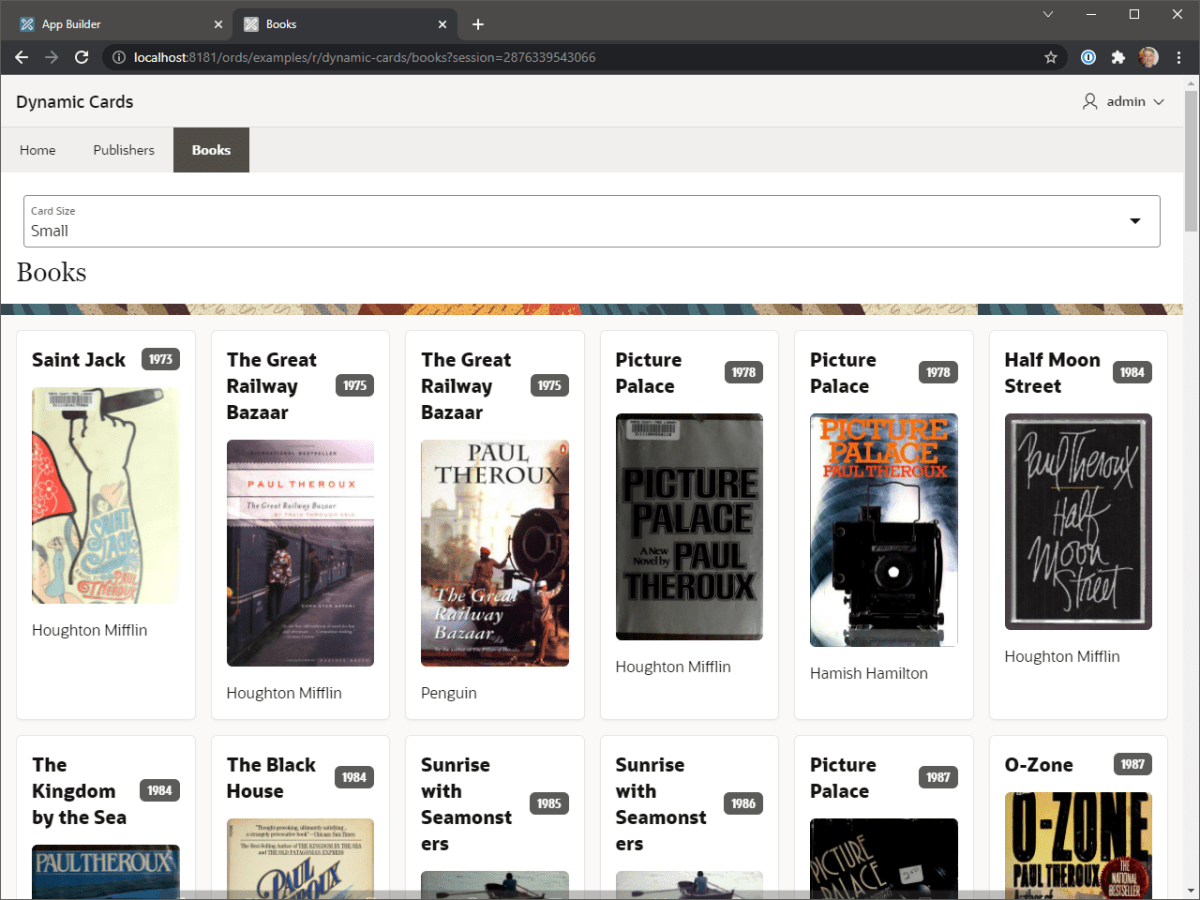
Card region showing Paul Theroux books

Nota Bene

I’ve tested these techniques in APEX 21.2 but need to remind you that the particular structure of how APEX universal theme generates HTML elements in this release is not guaranteed to remain the same across future APEX releases.

Adding Tags Using Multi-Value PopupLOVs and Smart Filters

Overview

Google’s Gmail was the first app I remember that popularized users’ inventing their own descriptive labels and applying them as “tags” to data. Instead of moving an email from the “Inbox” folder into one named “Charitable Donations 2019 USA”, for example, it encouraged me to tag the message with multiple, distinct labels like “2019”, “taxes”, “charitable donations”, and “USA”. While not initially as intuitive as folders, this approach quickly proved its value. It let me quickly locate mails related to a particular year, to charitable donations, to taxes in general, or to the US, or any combination of those criteria.

For the same reasons, a flexible tagging facility comes in handy for many kinds of data we work with everyday. Whether it’s pictures in a photo library, products in an online store, or books in your collection, tags that help users quickly find what they are looking for are a boon. When combined with Oracle APEX’s powerful faceted search and Smart Filters capabilities, it packs a powerful productivity punch.

In this article, I explain the technique I used over the holidays to add a flexible tagging facility to my art tracker application using a no-code approach that takes advantage of APEX’s multiple value support in popup LOV page items and Smart Filters. Here, we’ll apply the approach to a simple application that tracks books, publishers and authors. You can find the link to download the example application at the end of the article.

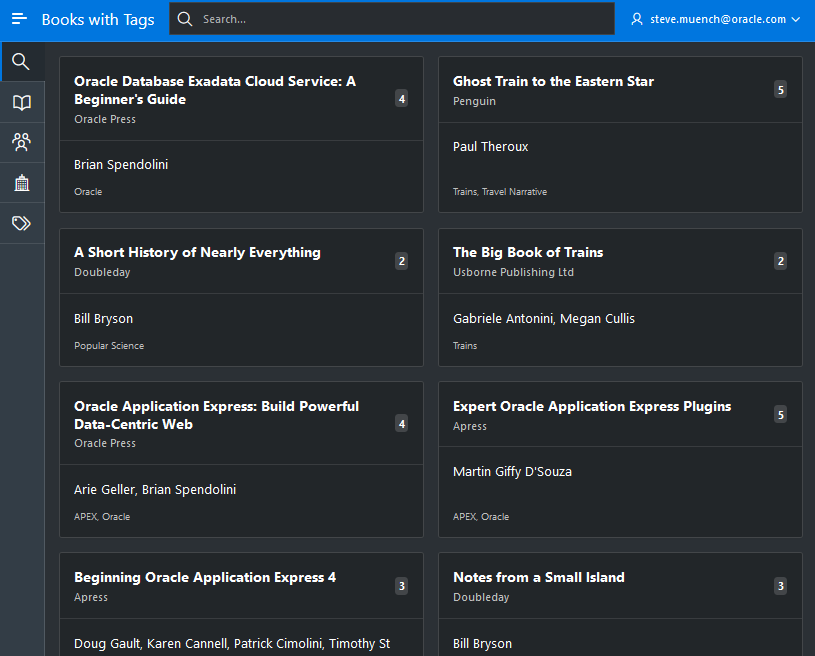
Book Finder page featuring Cards region showing title, authors, publisher, and tags

Multi-Value PopupLOV for Tags

The BOOK_TAGS table defines an ID and NAME for the descriptive tags you can apply to books. The sample data includes pre-defined tags like “Trains” (2), “Travel Narrative” (1), “Children” (5), “Fiction” (6), and others.

The BOOK_TITLES table contains a book’s TITLE, the PUBLISHER_ID, and a TAGS column, whose value is a colon-separated list of tag ids. For example, a book that is a fictional travel narrative about riding on trains might have the value “6:1:2” representing the id values of the three tags “Fiction”, “Travel Narrative”, and “Trains”. Since the order of the the tags is not significant to our use case, it also might have the value “1:2:6” depending on the order in which the end-user added the tags to the list.

The figure below shows how I configured the P3_TAGS page item in page 3’s form region to support visualizing and editing the possibly-multiple tags applied to a book. Notice that the page item type is Popup LOV, the Multiple Values property is enabled, the literal colon character (:) is indicated as the value Separator, and the Search as You Type property is on. I’ve configured a shared component TAGS_LOV List of Values to provide the alphabetized list of available tags.

Configuring multi-value popup LOV page item in an edit form page

Pay special attention to the Manual Entry setting above. We’ve consciously disabled that property since by design at the moment APEX shows the end user the underlying values (e.g. 6 , 1 , 2 ) for a manual-entry popup LOV instead of showing their corresponding display text values (e.g. Fiction , Travel Narrative, Trains ). That may be appropriate for some multi-value use cases where the LOV entry’s display and return values are the same, but here I preferred that my end-users would see the tag display values.

The result is the easy-to-use book editing page shown below. Notice that the P3_AUTHOR_IDS page item is configured in the same way as P3_TAGS to allow entering the colon-separated list of one or more author ids for the book.

Multi-value popup LOV page items editing book details at runtime

Multi-Value Smart Filter for Tags

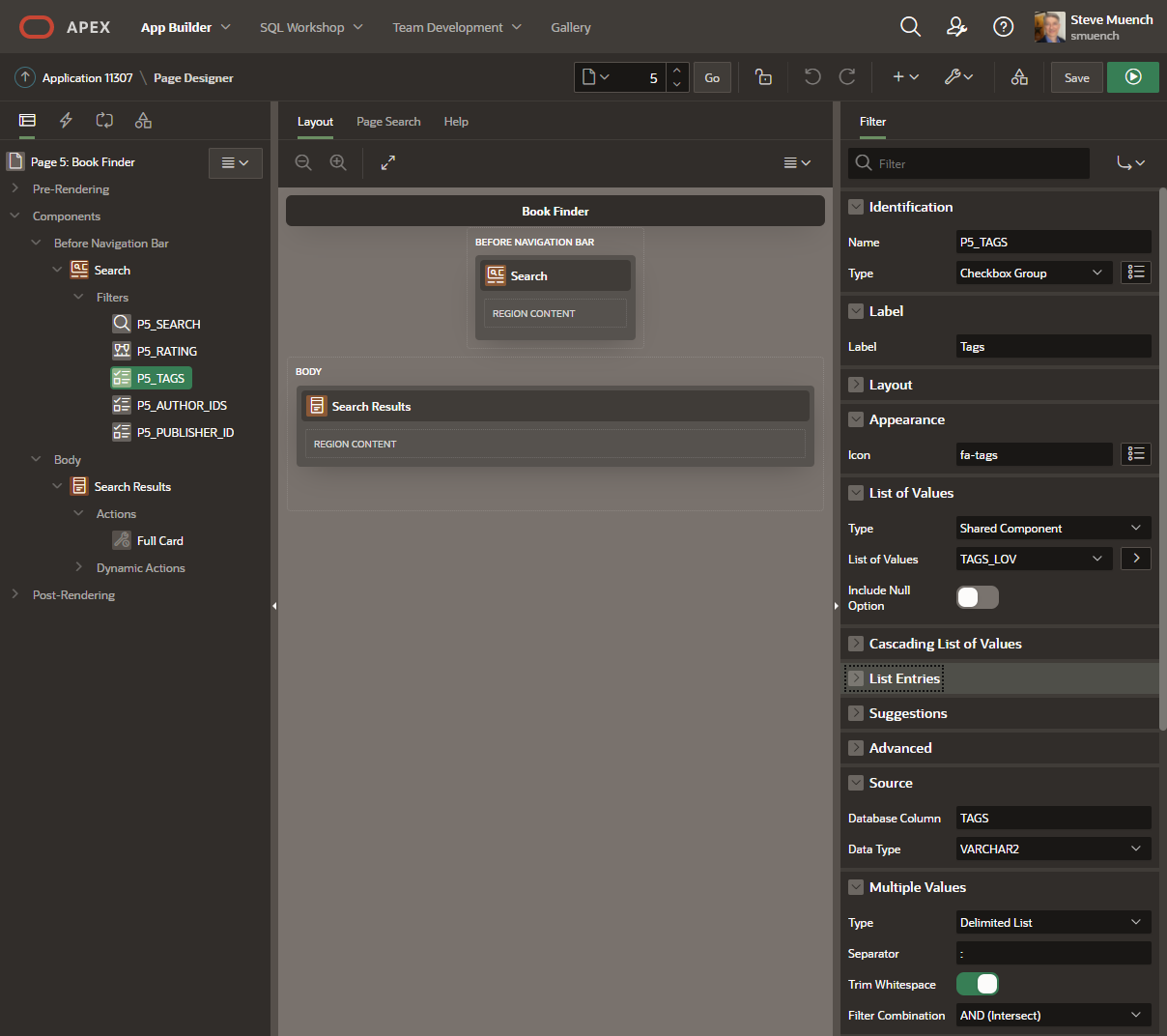
APEX makes it simple to easily filter on one or more tags applied to records in both faceted search as well as the new Smart Filters region. The figure below shows how the P5_TAGS smart filters search facet in the Book Finder cards region page (5) is configured to enable this behavior. Notice the search facet Type is set to Checkbox Group, the Multiple ValuesType is set to Delimited List with the Separator configured to be a literal colon character (:), and we’ve enabled the Trim Whitespace option.

Configuring multi-value P5_TAGS smart filter facet to handle colon-delimited values

This is the only configuration necessary to get the tags field working for searching. The result produces a smart filter search field (above our cards region) on page 5 in the example app that looks like the figure below. Ticking one or more tags in the list narrows the search results to show only books having that/those tags applied (in any order).

Checkbox Group smart filters facet to search for books by one or more tags applied.

As above, the P5_AUTHOR_IDS search facet has been configured identically to the P5_TAGS one to allow narrowing down the search results by any combination of authors and/or tags as shown below where we’ve found books authored by Brian Spendolini about APEX.

Applying two multi-value smart filters: one for authors, one for tags

Displaying Multi-Value Fields in Report Regions

When working with multi-value columns like TAGS and AUTHOR_IDS in our BOOK_TITLES example table, it’s useful in report pages or card regions to show the list of display values corresponding to the one-or-more ids stored in the colon-separated column value. For this task, I employed the handy LISTAGG() function to aggregate the set of related tag display values and author names into an ordered, comma-separated list. I combined it with the useful split_numbers() function in the apex_string utility package. When wrapped by a table() operator, this helpful routine lets us select the numbers in the colon-separated list as a table row source right in the query. To make it easier to use this information from any report or card regions where I needed it in my application, I created the BOOK_TITLES_V database view with the following SELECT statement.

select 
    b.id,
    b.title,
    b.tags,
    b.rating,
    b.publisher_id,
    b.author_ids,
    (select listagg(name,', ')
            within group (order by name collate binary_ai)
       from book_tags 
      where id in (
        select column_value 
          from table(apex_string.split_numbers(b.tags,':'))
        )
    ) display_tags,
    (select listagg(name,', ')
            within group (order by name collate binary_ai)
      from book_authors 
     where id in (
       select column_value 
         from table(apex_string.split_numbers(b.author_ids,':')))
    ) display_authors,
    p.name as publisher
from book_titles b
left outer join book_publisher p 
             on p.id = b.publisher_id

Notice that I’m passing the literal colon character as the separator to the apex_string.split_numbers() function in two places, and passing the separator string consisting of a comma followed by a space to the listagg() function. The collate binary_ai keywords in the order by part of the listagg function’s within group clause ensures that display values sort in an accent-insensitive (and case-insensitive) way.

Enabling Custom PopupLOV Behavior via CSS Class

I had achieved my goal without writing any code and was happy with how simple it was to implement… when I noticed an interesting extra-credit opportunity that piqued my interest.

While interacting with the PopupLOV component, I observed that its Search as You Type filter remained “sticky” across multiple interactions with the dropdown list of choices. For example, consider the screenshot below where I was editing the tags for a Bill Bryson book. If I typed tr into the PopupLOV search field, as expected the list narrowed down to only show relevant tags “Trains” and “Travel Narrative”. However after choosing “Trains”, if I clicked again into the multi-value field to drop-down the list to choose another tag to apply, the list remained filtered as before to only those tags containing tr in their names. However, often the next tag I wanted to apply required me to clear the previous search field text to start fresh with the complete list of tags to choose from or search through.

Search as You Type filter in use in a PopupLOV for tags applied to a book.

After not finding any declarative PopupLOV setting to control the “stickiness” of the search field value, I began by experimenting with various ideas using dynamic actions to force the PopupLOV search field to clear. Not satisfied with the results, I reached out to my colleague John for some expert advice.

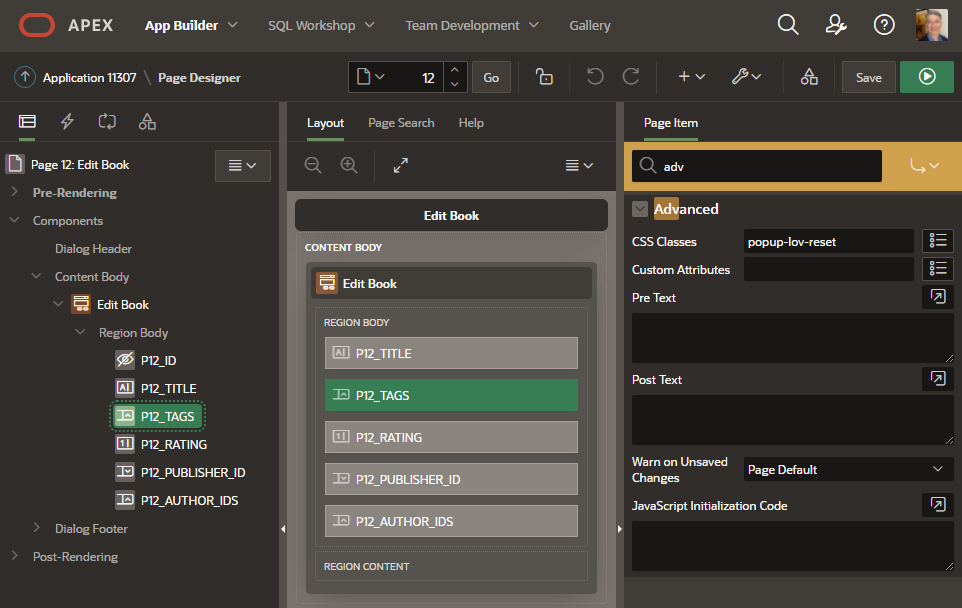
He suggested I implement generic JavaScript code in an app.js static application file that would automatically enable a custom behavior whenever a PopupLOV page item had a particular custom CSS class applied to it. This way, the code was reusable and enabled declaratively by simply adding a CSS class name like popup-lov-reset when the non-default search-field-resetting behavior was desired. The figure below shows the modal Edit Book page (12) called by the full card action on the card region of the Book Finder page (5). Notice the custom CSS class name popup-lov-reset in the AdvancedCSS Classes section. This is the signal to our generic code in app.js that this particular PopupLOV prefers the reset-search-field behavior each time the user engages the page item’s dropdown list.

Opting-in to custom application behavior by adding a custom CSS class to a page item

If you’re curious, you can study the full details of the custom JavaScript code John helped me with in the downloaded example app. However, most important were the higher-level principles he taught me along the way about how he recommends structuring application-level JavaScript code. Since I’m not a JavaScript expert, these were the even more interesting bits of precious knowledge that I felt fortunate to learn from him.

The high-level structure of the code in the example application’s app.js file appears below. It exposes a single app namespace inside of which can appear private functions specific to its implementation. This app namespace exports only the members it wants to be the public API. In this application, only the single function handlePopupLOVsWithSearchResetClass() is exported.

// Export just a single global symbol "app" to keep code clean
const app = (function($) {

    // Function private to the impl of the
    // exported 'app' namespace

    function makeResetPopupLov(itemName) {
      // Code removed for clarity here registers an event
      // handler on body of the page to react to the popupopen
      // event of PopupLOV page item in question.
      // See example app for full details.
    }

    // app namespace members
    return {
        //----------------------------------------------------
        // Turn any PopupLOV page items on page into ones that
        // reset their search field when dropdown pops open. 
        //----------------------------------------------------
        handlePopupLOVsWithSearchResetClass: function() {
            $(".popup-lov-reset.apex-item-popup-lov").each(
                function() {
                  makeResetPopupLov(this.id);
                }
             );
        }
    };
    // Ensure $ in app namespace resolves to correct jQuery
})(apex.jQuery);

If we include the “document ready” event handler code below inside the app.js file, then all pages in the application magically inherit the ability to have any PopupLOV page item on the page opt-in to reset-search-field behavior just by adding the CSS class name popup-lov-reset in the page item’s AdvancedCSS Classes section. In contrast, if you only want the functionality to be available on selected pages, then include this event handler code just on the specific pages where you want the behavior to be available.

// Inside app.js, runs for every page after document is ready
// Alternatively, you can just add to the pages where you want
// the behavior to be available.
//
// "Document Ready" event handler code
$(function() {
    app.handlePopupLOVsWithSearchResetClass();
});

If you want to try out the example for yourself, then download the APEX 21.2 example application here.

Interactive, User-Configurable Card Width #JoelKallmanDay

Create a cards region with interactive card width selector, saving user’s preference across logins.

We miss you, Joel.

Everyone in the Oracle APEX community

Oracle APEX card regions let your users browse and act on a grid of tiles, each representing a row of data. The card region directly taps into your end user’s intuition of browsing their mobile phone’s photo library, especially when the cards feature an image, so it’s a compelling way to present data to users.

The card region’s grid style resizes automatically to the screen space available, but by default end users can’t influence the size of each tile in the grid. Read on to learn how to let your users adjust the card width interactively and remember their choice as a preference across logins. At the end, you’ll find a step-by-step video tutorial and downloadable sample application, but we’ll explore the key ideas behind the technique first.

Overview of Strategy

To implement the feature, you’ll add the following to your page with the card region:

  • A select-list page item showing list of available sizes (e.g. Small, Medium, Large)
    • Having corresponding values of the pixel widths 180px, 220px, 300px
    • Defaulted to the static value for the Medium size (220px)
    • Configured with Maintain Session State setting of Per User (Disk).
  • A dynamic action “trigger” for the select list’s Change event with actions:
    1. Execute JavaScript to update the CSS variable controlling the card size
    2. Execute Server-side Code to save the updated value to the APEX session state

What’s a CSS Variable?

A CSS variable is a custom property whose name is prefixed by a double-hyphen (e.g. --preferred-button-width). It can be associated with any element in a page, either explicitly or implicitly by being associated with a class applied to that element. Any CSS expression can reference the value of a variable by using the syntax var(--variable-name) . The usage can also provide a default value to use in case the variable reference has no value of its own by including a second argument like var(--variable-name, defaultValue) . So, a CSS class named myButton could set the width property to the value of the --preferred-button-width variable (providing a default of 80 pixels) like this:

.myButton {
  width : var(--preferred-button-width,80px);
}

If the same variable exists on multiple elements in the page, the value of the most specific occurrence is used. To provide a global default value for a variable, you can set a value for it on the special :root pseudo-class. If no more specific element in the page provides a value, then the one from the root is used.

As we’ll see below, the Universal Theme style class that defines the card region’s grid layout uses a CSS variable to control the size of the cards in the grid. So setting the right variable to a user-chosen value on the appropriate scope for your needs is the crux of the solution. So let’s explore which variable to set and consider on what context makes sense to set it.

Which Variable Do We Need to Set?

While a page containing a grid region is displayed, using the Chrome developer tools to inspect one of the cards (and clicking to enable the CSS-grid related style properties) we can observe that the card items grid layout is setup by this CSS class:

.a-CardView-items--grid {
    grid-template-columns: 
         repeat(auto-fill,minmax(var(--a-cv-item-width,320px),1fr));
}

At first glance, it’s admittedly cryptic, but let’s unpack what it says. This style property defines the grid-template-columns layout to be a repeating set of columns that auto-fill the horizontal space available with uniform-sized grid cells. The browser computes the width of each grid cell automatically so it falls in the range between the values passed to the minmax() function. The first argument, that is the minimum width value, is given by the value of the CSS variable named --a-cv-item-width (or a default to 320 pixels if the variable is not defined). The second argument providing the maximum card width is one fractional unit (1fr), which represents the width of one column in the layout taking into account a spacing between grid cells, too. In short, if we assign the user-preferred card width value to the CSS variable --a-cv-item-width then the grid will instantly react to layout the grid with cards having that width (or slightly bigger to make each grid cell uniformly sized).

On What Context Do We Set the CSS Variable?

We have at least two sensible choices for the context on which to set the card size CSS variable:

  1. On the card region itself, after assigning it a static id in the App Builder, or
  2. On the “global” root context

Choice 1 imposes the user-preferred card width on just the region on which it’s assigned, whereas choice 2 sets the user-preferred card width so that all card regions in the application will abide by it.

The code examples that follow assume you’ve created a page item named P3_CARD_SIZE on the page with the card region, and that the values for the P3_CARD_SIZE select list page item are one of 180px for Small, 220px for Medium, and 300px for Large.

JavaScript to Set the CSS Variable on a Region

After configuring a static id on your card region (e.g. BooksCardRegion), your dynamic action on the P3_CARD_SIZE page item’s Change event can use the following line of JavaScript to change the CSS variable --a-cv-item-width to the new value of the P3_CARD_SIZE page item:

$('#BooksCardRegion').css('--a-cv-item-width',$v('P3_CARD_SIZE'));
JavaScript to Set the CSS Variable Globally

Your dynamic action on the P3_CARD_SIZE page item’s Change event can use the following line of JavaScript to change the CSS variable --a-cv-item-width on the global “root” context to the new value of the P3_CARD_SIZE page item:

$(':root').css('--a-cv-item-width',$v('P3_CARD_SIZE'));

Pushing the Interactive Card Size Change Immediately to the Server

The change to the CSS variable is made in the browser when the dynamic action reacts to the user’s change of the select list page item, and immediately takes visual effect for the end user in their browser. However, to immediately force the value change to be saved in the APEX session, add an additional dynamic action step to Execute server-side Code and which specifies the P3_CARD_SIZE as one of the page items to send to the server. Since it doesn’t need to perform any other server-side logic beyond pushing the values, you can simply use the “do nothing” PL/SQL instruction NULL; to enter into the required PL/SQL script property. If the page item’s Maintain Session State setting is configured to “Per Session (Disk)” then the user’s preference will persist for the duration of the session. If instead it’s set to “Per User (Disk)“, the setting will survive across subsequent user logins.

Step by Step Tutorial Video

NOTE: The video illustrates setting the CSS variable on the :root context, while the downloadable example app illustrates setting the variable on the card region. See above for a consideration on which is appropriate for your use case .

Sample Application

You can download an Oracle APEX 21.1 example application (containing a supporting objects installation script for two sample tables PNL_THEROUX_BOOKS and PNL_PUBLISHERS) from here.