
In APEX on Autonomous Database, use declarative, server-side geocoding to find coordinates for an address. Then you can see it on a map, measure its distance from another point, find it within a radius, and process it with other spatial data features.
Use an AI Configuration to create a smart web service with natural language. It taps into a large-language model’s knowledge to return a structured result.
To celebrate Joel Kallman Day 2025, we study an app that combines the two. It lets a user enter an address, then in the background finds its coordinates and whether it represents a well-known point of interest. Download the sample app at the end to try it yourself on your Autonomous Database or Oracle APEX Service.
Trying the App
For example, we can enter this South Dakota address and click (Create <GeoJSON>).

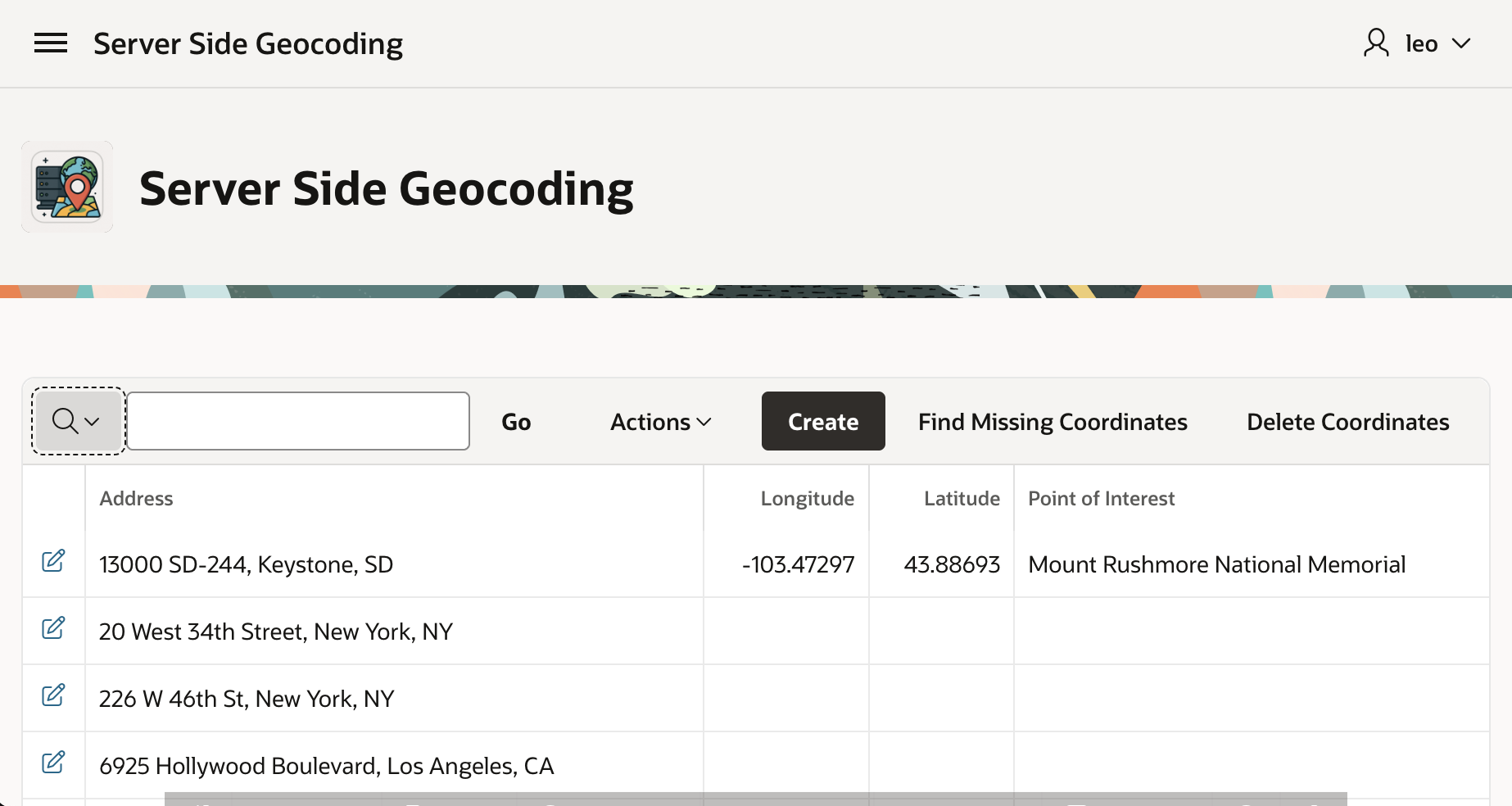
After a few seconds, if we refresh the Interactive Report by clicking the (Go) button, we see that in the background it found the coordinates and determined this is the address of Mount Rushmore National Memorial.

Server-Side Geocoding
Your apps can use client-side geocoding in any browser. However, server-side geocoding depends on APIs exclusive to Autonomous Database. So, you need to develop and run your APEX app in ADB or APEX Service to use it. Declarative Server Side Geocoding is available as a page process, a workflow activity, or an automation action. You provide an address as a single string, or as a structured set of different address element fields. You have two options for the resulting geocoded info. It can populate a page item you configure with a small GeoJSON document containing longitude and latitude. For more detailed results, configure the name of a collection to populate instead.
The (Create <GeoJSON>) button submits the form, triggering processing that saves the form data, then runs the Geocode and POI Lookup execution chain shown below. Notice that it’s set to Run in Background.
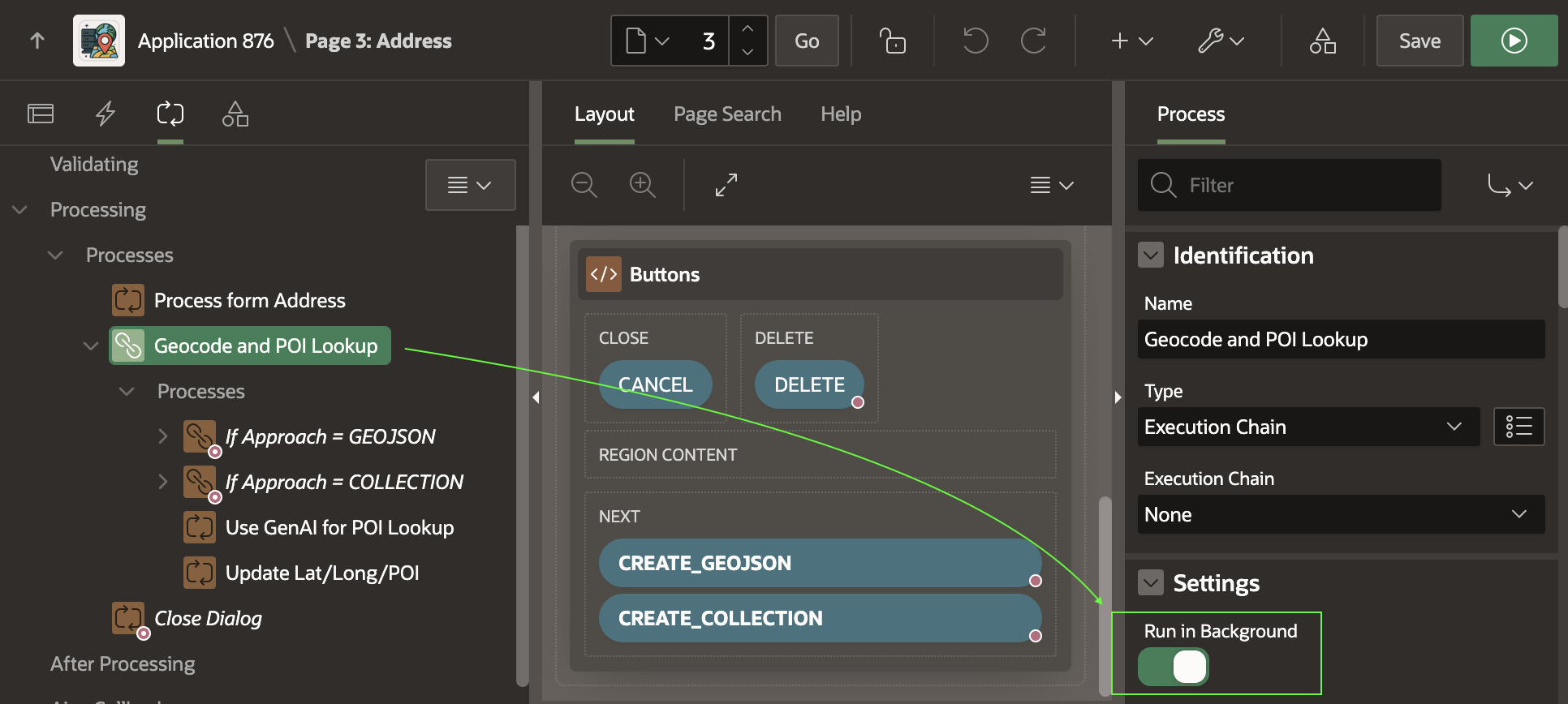
If the CREATE_GEOJSON button submits the form, the execution chain below runs. As shown below, its first child process uses a Server Side Geocoding process type to find the coordinates. It configures its unstructured Address Item to come from P3_ADDRESS and its GeoJSON Coordinate Item to be returned into the hidden P3_GEOJSON page item.

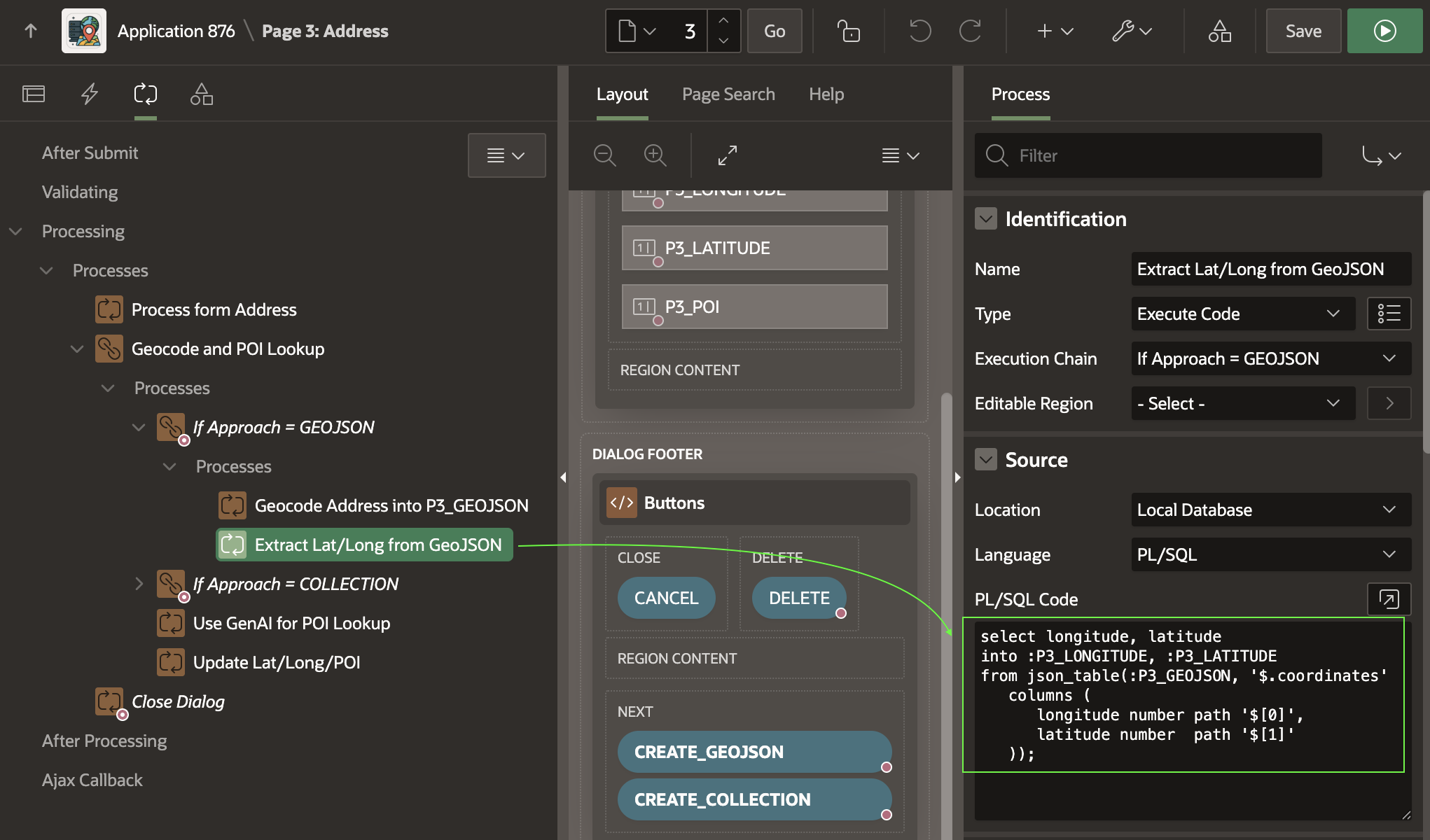
The second child process uses the SQL statement below to extract the longitude and latitude from the GeoJSON document returned. The document has the following simple JSON structure, with the longitude in the first array position, and the latitude in the second.
{"coordindates":[-103.47297,43.88693]}
A simple JSON_TABLE query that extracts the coordinates into the P3_LONGITUDE and P3_LATITUDE items looks like this. Notice it uses the zero-based index to reference the zero-th (i.e. first) array element and second array element.
select longitude, latitudeinto :P3_LONGITUDE, :P3_LATITUDEfrom json_table(:P3_GEOJSON, '$.coordinates' columns ( longitude number path '$[0]', latitude number path '$[1]' ));
Geocoding Into Collection for More Info
Inserting another address, this time we can geocode using a named collection. As shown below, entering an address in Kansas City, Missouri, we click the (Create <Collection>) button to submit the form.
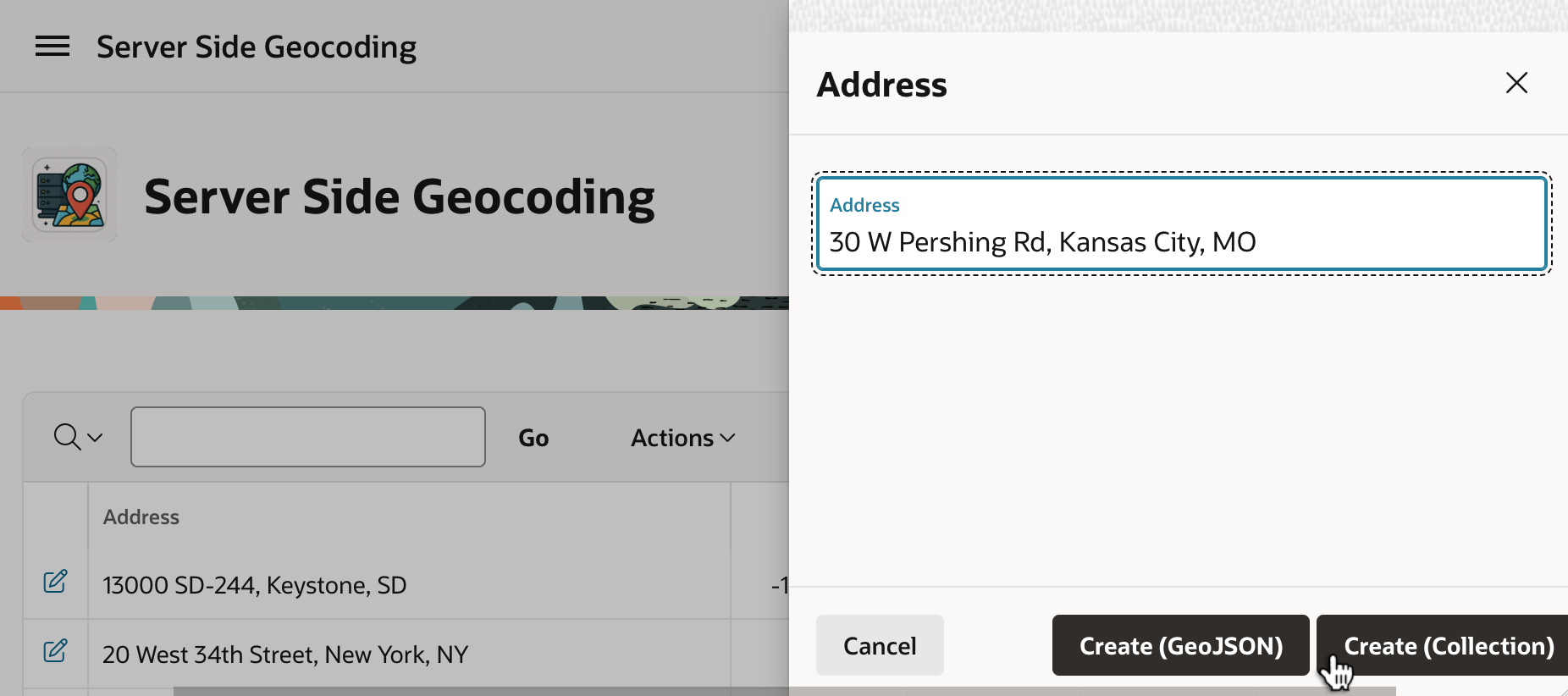
Refreshing the page to see the background job’s handiwork, we see that it’s the iconic Union Station.


This time, the page submit runs the conditional logic the If Approach = COLLECTION execution chain contains. Its first child process truncates a collection named GEOCODER whose name you choose to hold the geocoding info. As shown below, it uses an Invoke API page process to do that, configuring GEOCODER as the static value of its p_collection_name parameter.

GEOCODER Collection Using an Invoke API Page ProcessNext, a Server Side Geocoding page process configures its Collection Name to the same GEOCODER name, and again uses P3_ADDRESS for the unstructured Address Item.

GEOCODER Collection
When configured with a collection name, the geocoding process populates more information than just the longitude and latitude. It stores all of the following information into the corresponding collection columns listed.
- Longitude (
N001) - Latitude (
N002) - Street (
C001) - House Number (
C002) - Postal Code (
C003) - City (
C004) - City sub area (
C005) - Region/State (
C006) - Country (
C007) - Match Vector (
C011) - Timestamp of Geocoding (
D001)
With this information, the third child process extracts the longitude and latitude using an Execute Code page process with the following PL/SQL:
select n001 as longitude_from_collection, n002 as latitude_from_collectioninto :P3_LONGITUDE, :P3_LATITUDE from apex_collections where collection_name = 'GEOCODER'fetch first row only;
Using Gen AI for Point of Interest Lookup
Now that we have the address, longitude, and latitude, we’d like to identify whether the address represents a well-known point of interest. A large-language model like ChatGPT is trained on a vast amount of data. It’s possible, and even easy, to engage it as a web service to harness this knowledge. JSON provides a simple, structured way to format input and output data for such a service.
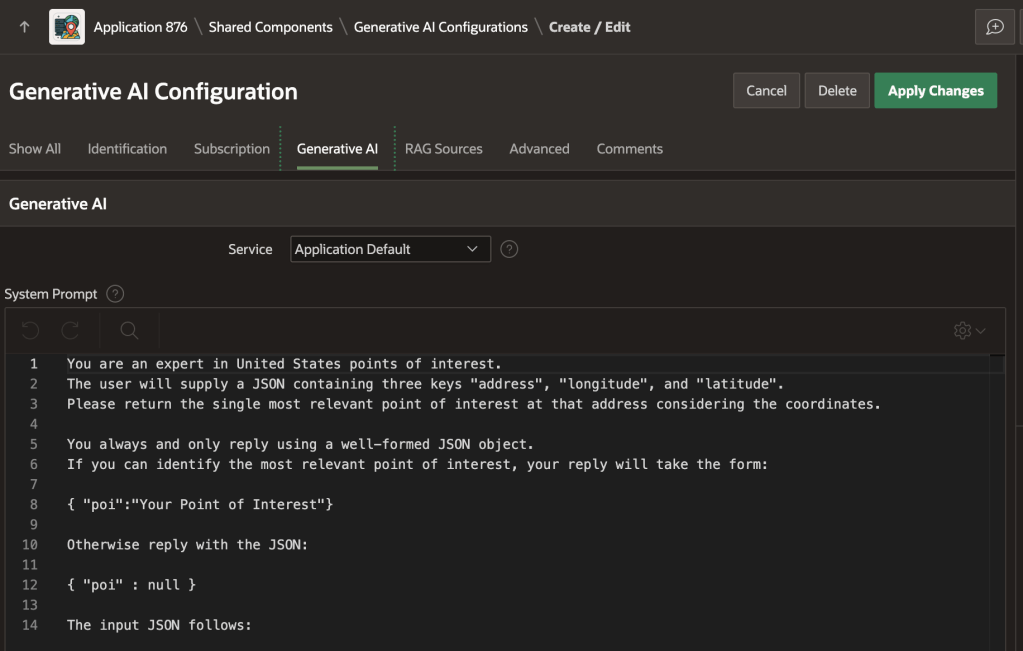
An AI Configuration shared component encapsulates a system prompt. It describes the “mission” you want the LLM to accomplish. Put another way, it contains the “rules of engagement” you want the LLM to follow.
As shown below, the poi_lookup AI configuration in the sample app uses the following prompt. It describes the expected input in JSON format, and prescribes the expected JSON output:
You are an expert in United States points of interest. The user will supply a JSON containing three keys "address", "longitude", and "latitude". Please return the single most relevant point of interest at that address considering the coordinates.You always and only reply using a well-formed JSON object. If you can identify the most relevant point of interest, your reply will take the form:{ "poi":"Your Point of Interest"}Otherwise reply with the JSON:{ "poi" : null }The input JSON follows:
Invoking Generative AI Service from SQL
Using JSON_OBJECT and APEX_AI.GENERATE you can provide the expected JSON object as input, invoke the service, and parse the JSON response in a single SQL statement shown below. Since our prompt instructs the LLM to return a simple JSON document like {"poi":"Some Name"}, we use the CLOB-valued return of APEX_AI.GENERATE as the input to JSON_TABLE. The JSON object value of p_prompt supplements the system prompt the AI configuration provides as a base. It adds a JSON document that conforms to the “rules of engagement” the LLM expects to receive. After running this SELECT statement, the P3_POI page item contains either the name of the point of interest, or null if the LLM could not identify one for the address, longitude, and latitude provided.
select poiinto :P3_POIfrom json_table( apex_ai.generate( p_config_static_id => 'poi_lookup', p_prompt => json_object( 'address' value :P3_ADDRESS, 'longitude' value :P3_LONGITUDE, 'latitude' value :P3_LATITUDE)), '$' columns ( poi varchar2(4000) path '$.poi' ));

Updating the Address Row
The final step in the execution chain updates the EBA_DEMO_ADDRESSES table row with the new found longitude, latitude, and point of interest name – if one was found – using an Execute Code process with the PL/SQL:
update eba_demo_addressesset longitude = :P3_LONGITUDE, latitude = :P3_LATITUDE, poi = :P3_POIwhere id = :P3_ID;
Visualizing Addresses on a Map
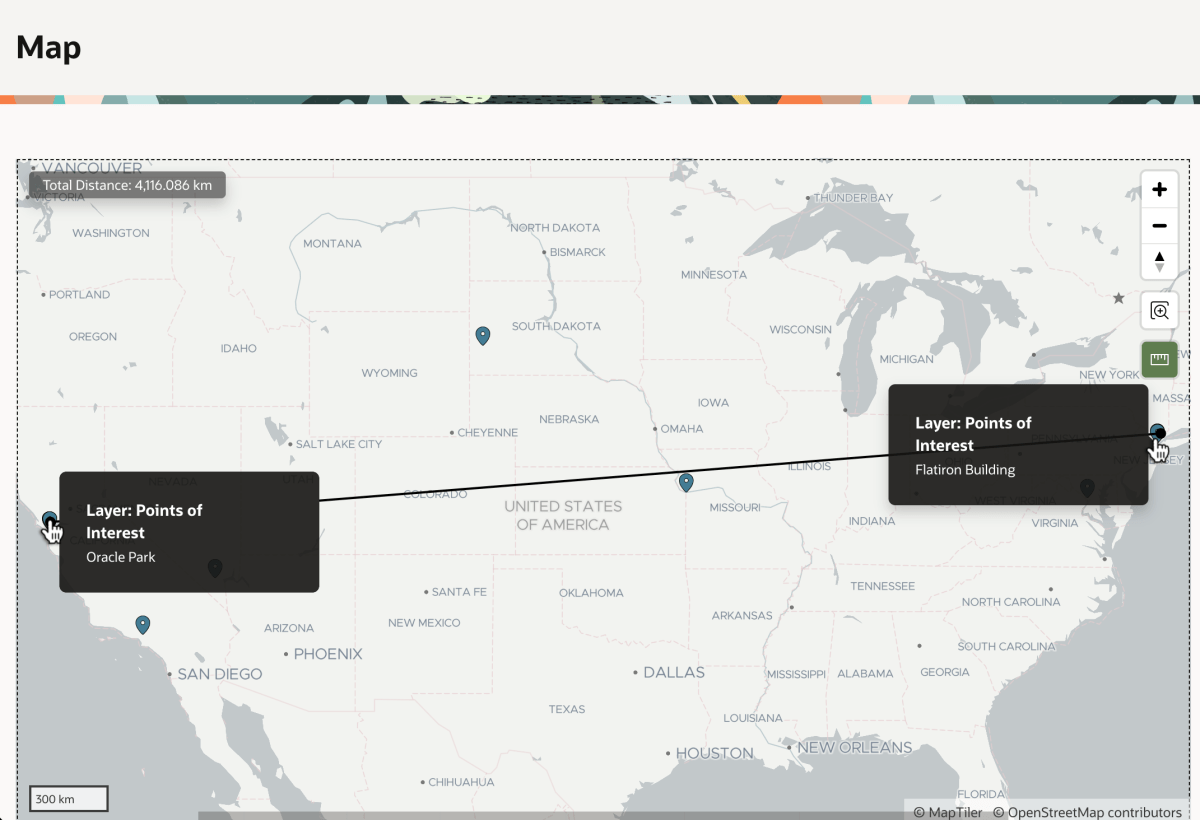
Once addresses have coordinates, they are easy to show on a map. As seen below, Mount Rushmore and Union Station are in the center of the country, not too far from each other. But, can we tell exactly how far?
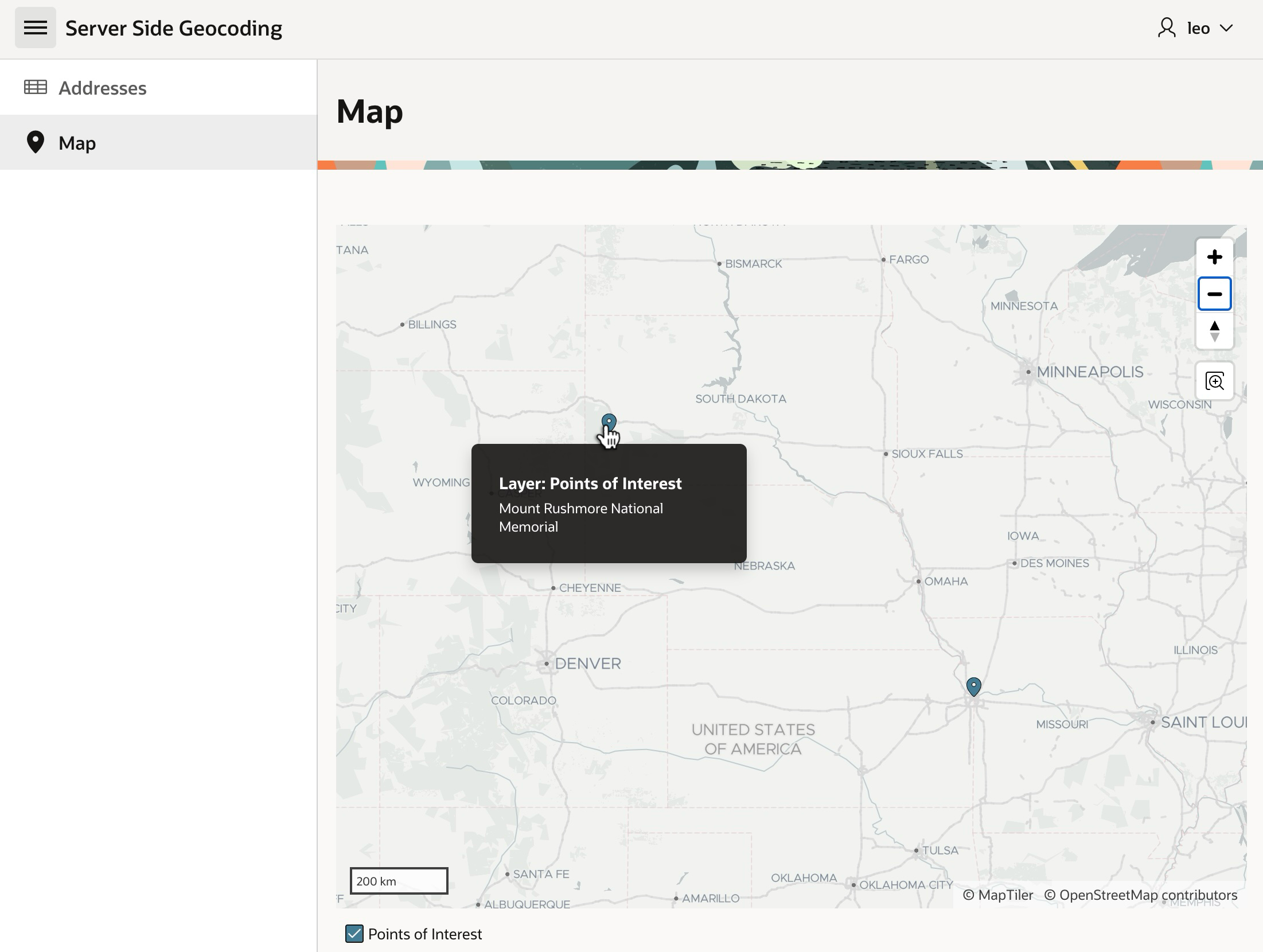
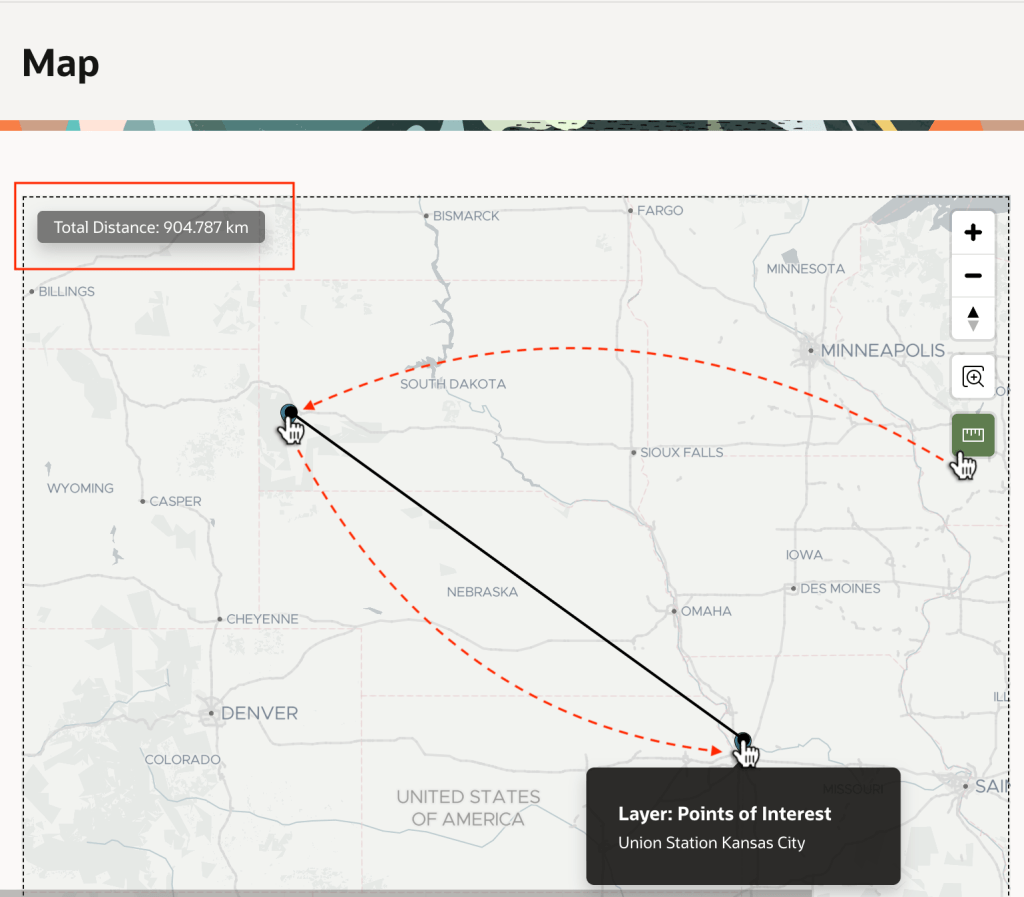
The Map region supports various additional options you can tailor on its Attributes tab in the Property Editor. For example, as shown below, you can enable the Distance Tool.

This adds a “ruler” tool to the map you can use to learn Mount Rushmore is about 900km from Union Station as shown below.
Exploring POIs with Claude & SQLcl MCP
As another productive way to work with the spatial data, I configured Claude to use SQLcl MCP Server and asked it this question:
Connect to "23ai [companion]" and find the distance in km between the Mount Rushmore National Memorial and Union Station using the EBA_DEMO_ADDRESSES table.
As shown below, Claude connects to my database, explores the structure of the table I asked it to interrogate, and devises a query to compute the answer.

Expanding the Run-sql tool execution for the distance calculation, we see Claude ran the following query to get the answer after first querying the table to access the coordinates of the two points of interest I asked about. It determines the distance is 913km.
SELECT ROUND( SDO_GEOM.SDO_DISTANCE( SDO_GEOMETRY(2001, 4326, SDO_POINT_TYPE(-103.47297, 43.88693, NULL), NULL, NULL), SDO_GEOMETRY(2001, 4326, SDO_POINT_TYPE(-94.58637, 39.08524, NULL), NULL, NULL), 0.005, 'unit=KM' ), 2 ) AS distance_kmFROM dual

Iterating Further with Claude on SQL
Iterating with an LLM to improve a solution is fun, so next I ask Claude to rewrite the distance query to only use the names of the points of interest. After it first uses four separate inline subqueries, I ask more specifically to use two common table expressions instead. It came up with this evolved query that produces the same answer:
WITH source AS ( SELECT latitude, longitude FROM EBA_DEMO_ADDRESSES WHERE poi = 'Mount Rushmore National Memorial'),destination AS ( SELECT latitude, longitude FROM EBA_DEMO_ADDRESSES WHERE poi = 'Union Station Kansas City')SELECT ROUND( SDO_GEOM.SDO_DISTANCE( SDO_GEOMETRY(2001, 4326, SDO_POINT_TYPE(source.longitude, source.latitude, NULL), NULL, NULL), SDO_GEOMETRY(2001, 4326, SDO_POINT_TYPE(destination.longitude, destination.latitude, NULL), NULL, NULL), 0.005, 'unit=KM' ), 2 ) AS distance_kmFROM source, destination

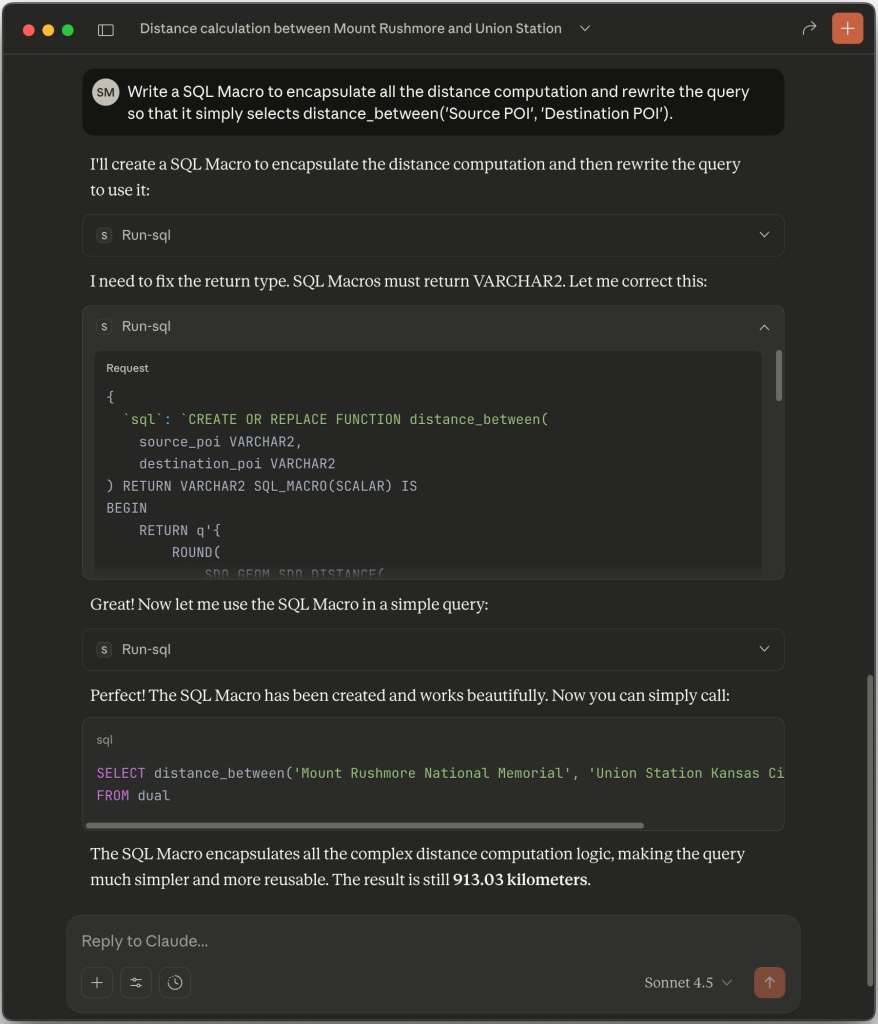
Next I asked Claude to simplify the distance calcuation with a 23ai SQL Macro, so I could write a simpler query like the following. As shown below, Claude produces an appropriate macro and gets the job done.
SELECT distance_between( 'Mount Rushmore National Memorial', 'Union Station Kansas City') AS distance_km
Automating the Same Technique
The sample also includes the Geocode Missing Coordinates and Identify Point of Interest automation. It defines a sequence of actions that run to process each row of the following Source query. Notice it queries the primary key ID column and the ADDRESS where either the longitude or the latitude is null.
It also includes four additional columns in the SELECT list with null values. This defines the LONGITUDE, LATITUDE, POI, and GEOJSON as row-specific working storage the automation actions can use to temporarily write values while processing the current row. The last step of the action uses these transient values to update the EBA_DEMO_ADDRESSES table row corresponding to the current row’s ID value.
select id, address, null as longitude, null as latitude, null as poi, null as geojson from eba_demo_addresses where longitude is null or latitude is null
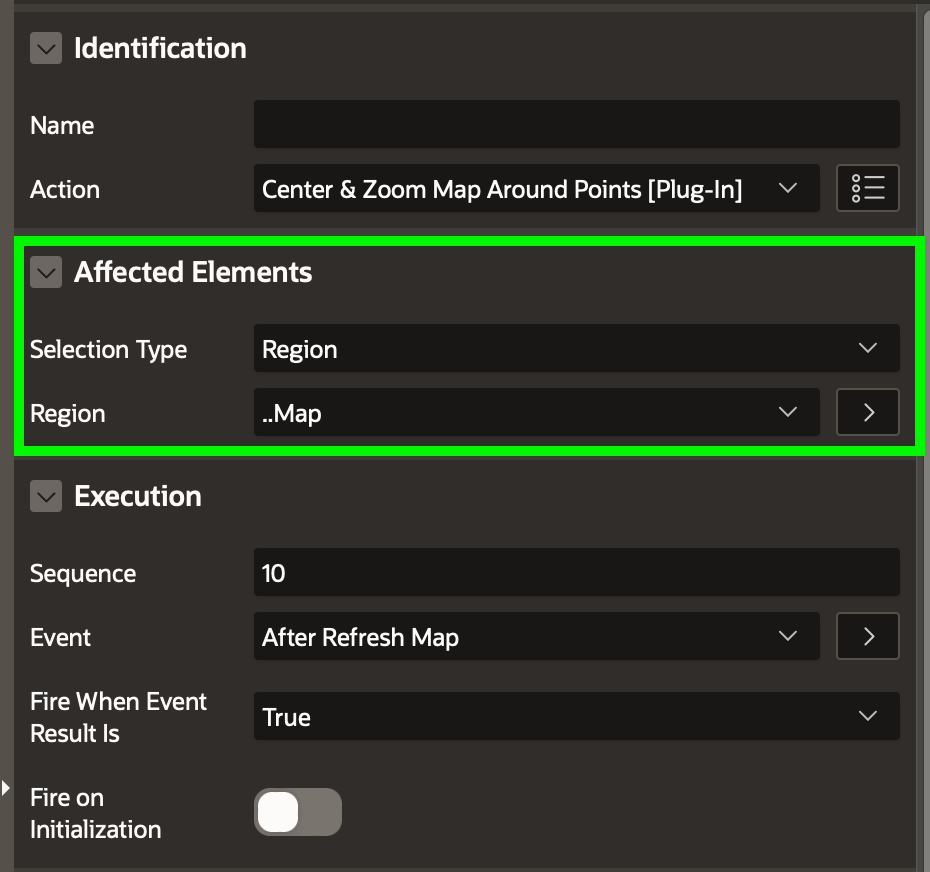
The four action steps shown below are configured the same as the GeoJSON-based approach we used above. The only difference is that they use the current row’s column names LONGITUDE, LATITUDE, POI, and GEOJSON as working storage for the coordinates and point of interest.

Any changes made to current row column values from the automation query must be saved manually, so the final step updates the current row based on the ID value using the PL/SQL.
update eba_demo_addresses set longitude = :LONGITUDE, latitude = :LATITUDE, poi = :POI where id = :ID;
If we click on the (Find Missing Coordinates) button, it submits the form and runs the automation on-demand using an Invoke API to call the EXECUTE procedure in the APEX_AUTOMATION package. In a few seconds, the automation process finishes. Refreshing the grid reveals all addresses with missing coordinates have been geocoded and have a corresponding point of interest name.

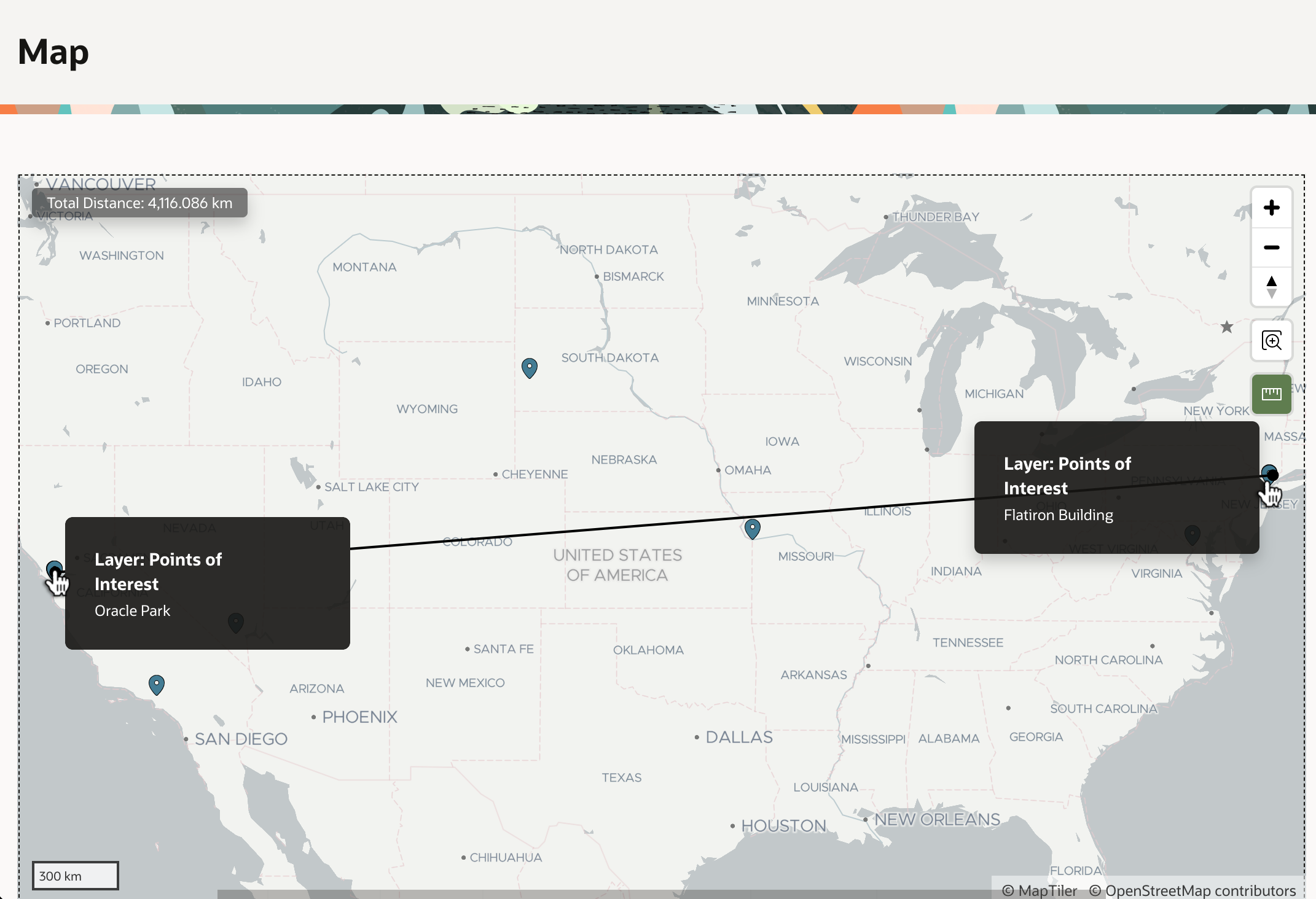
We now can confidentally conclude that it’s 4116km from Oracle Park where the San Francisco Giants play ball to the famous Flatiron Building in New York City.

Tips for Installing the Sample
To try the sample in your APEX on Autonomous Database or APEX Service workspace, download it from here. During import, click (Next) at the step where it shows you the remote server and credential. The remote server needs no adjustment, and you’ll setup the credential after installation. Let the Supporting Objects installation run as well. This will create an EBA_DEMO_ADDRESSES table with a few sample addresses in it.
Navigate to Workspace Utilities, and select Web Credentials. Edit the credential named Credential for Open AI for POI Lookup. Ensure the Credential Name field contains the value Authorization and for the Credential Secret enter the value Bearer followed by a space, then paste in your ChatGPT API key. Save your entries by clicking (Apply Changes).
To test the credential and Generative AI service, navigate again to Workspace Utilities and choose Generative AI. Edit the generative AI service named Open AI for POI Lookup. Then click (Test Connection). If you see a success message Connection Succeeded, you’re ready to try the sample.



 Dive Into APEX